Overview
In some scenarios, a LabVIEW application needs to be launched from the command line with parameters. For example, calling test.exe with four parameters ("true", "true", "false", "true"). How can the executable obtain those parameters?
Example: Control LEDs via Command-Line Arguments
Here is a simple example that demonstrates using command-line arguments to control four LEDs. Each argument controls one LED's on/off state.
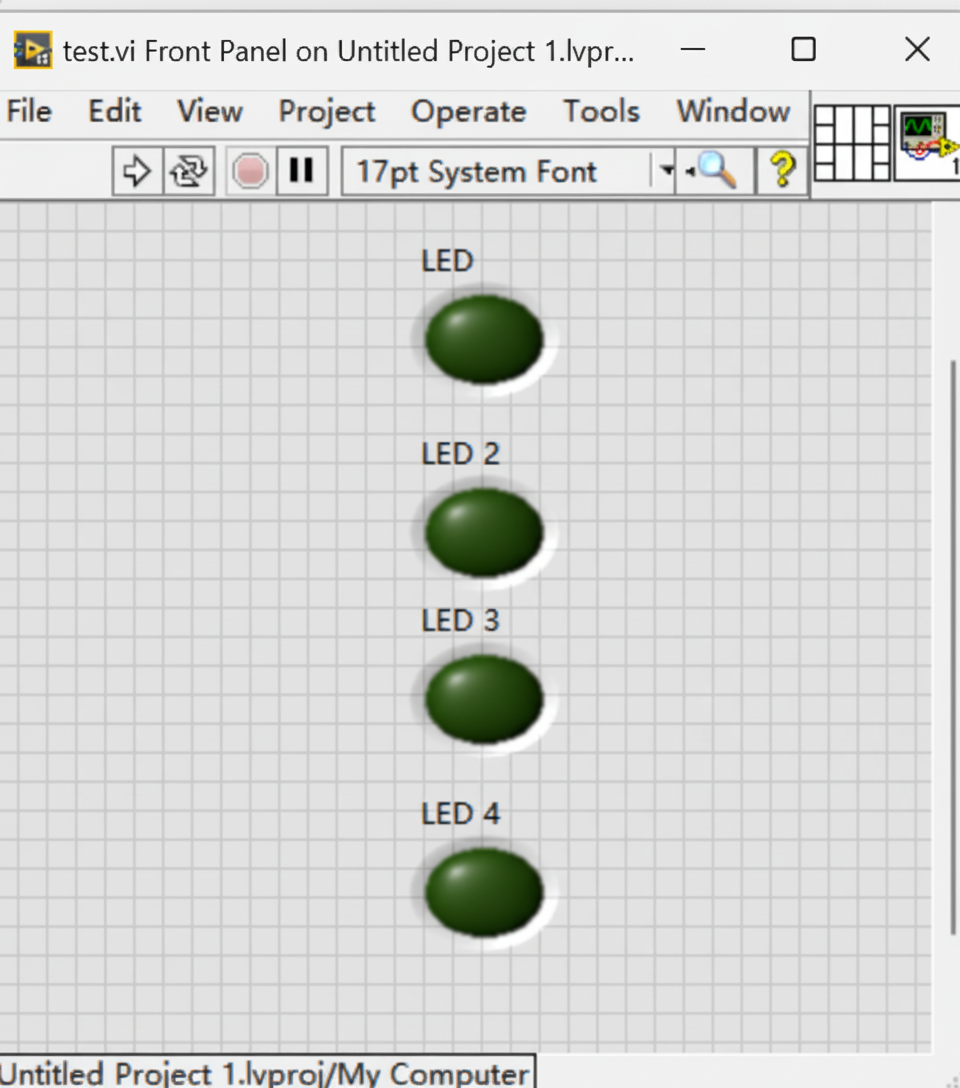
Getting Command-Line Arguments in LabVIEW
LabVIEW provides a property node to obtain command-line arguments. The property node returns an array of strings containing the arguments passed to the application.
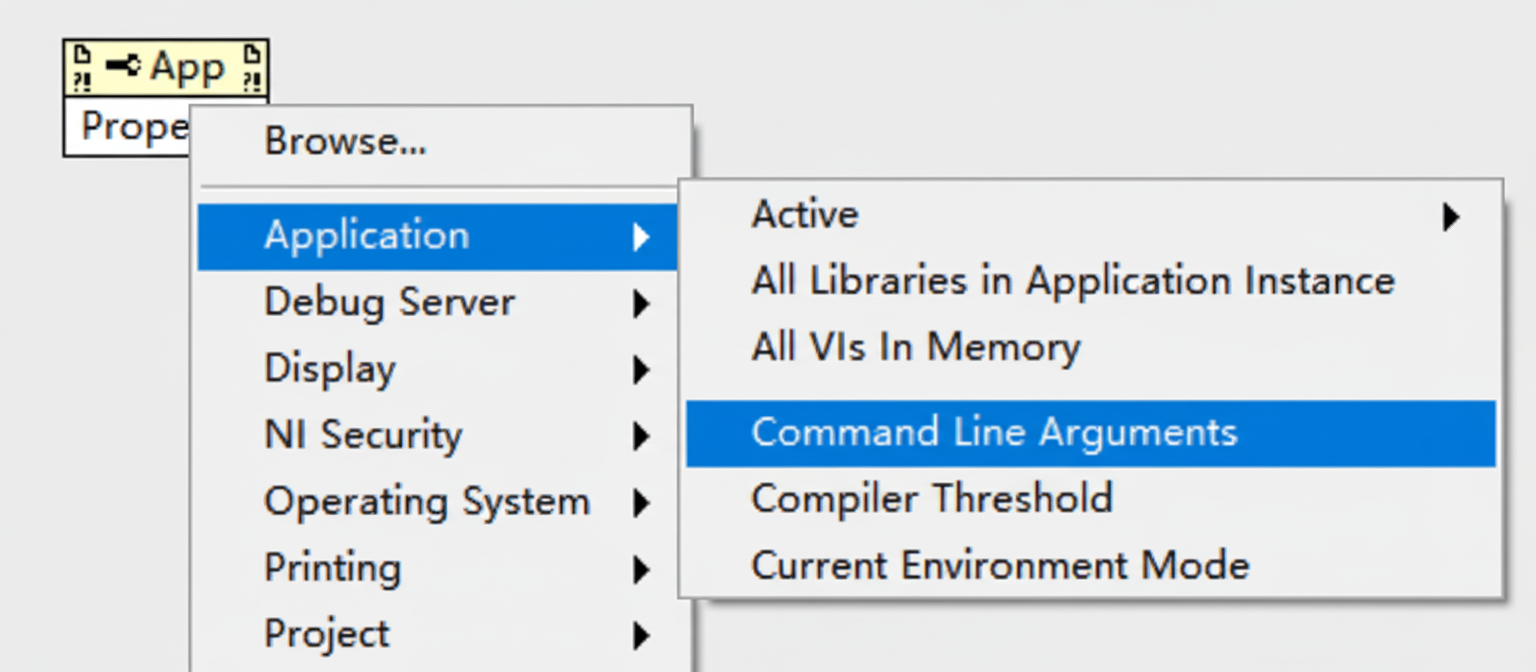
The documentation clarifies the behavior of the returned array. The first element is the name of the launched executable. If user-defined command-line arguments include double quotes, the returned strings do not include those quotes.
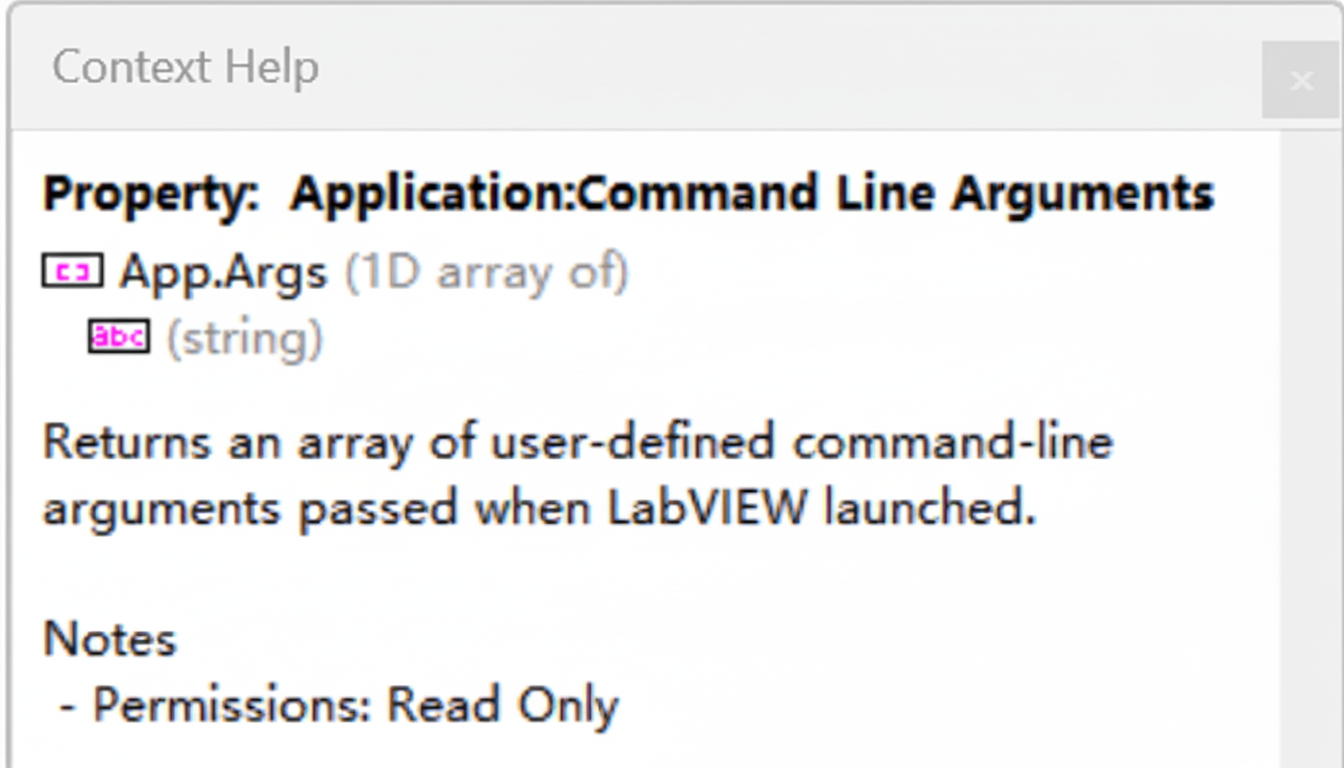
Build Setting: Pass Command-Line Arguments
When packaging the application into an executable, enable the build option "Pass all command line arguments to application" in the Advanced options. Without this setting, the executable will not receive the external command-line arguments.
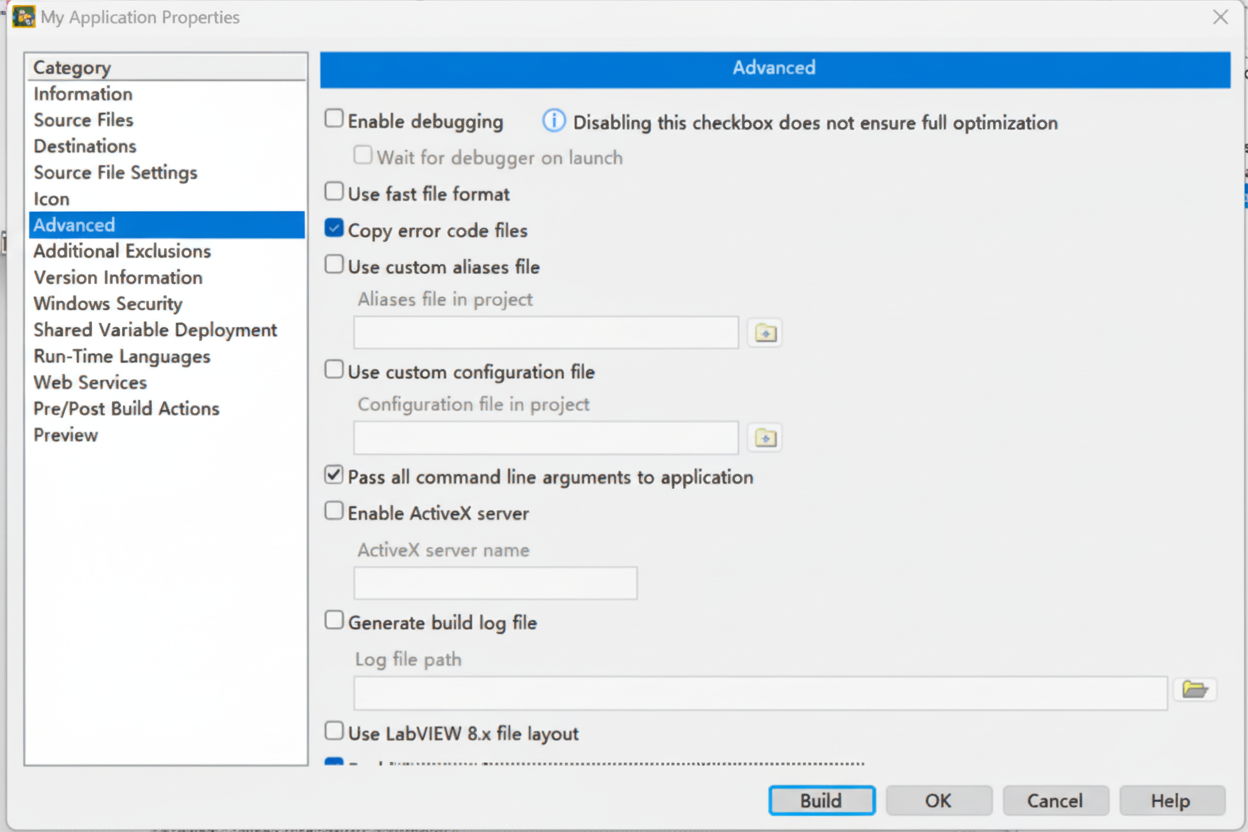
After enabling this option and building, test the executable. The application will receive and process the arguments as expected.
Related: Opening Files by Double-Click
If you want a LabVIEW-built application (for example, LVEditor.exe) to open files by double-clicking a file (such as a .txt file), set the file association so the file type uses your executable as the default opener. When a file is opened this way, the operating system passes the file path to the application as a command-line parameter, which the application can read using the same approach described above.
The example below shows a simple implementation where double-clicking a .txt file launches LVEditor.exe and the application reads the file path from its command-line arguments, then displays the file contents in a string control.
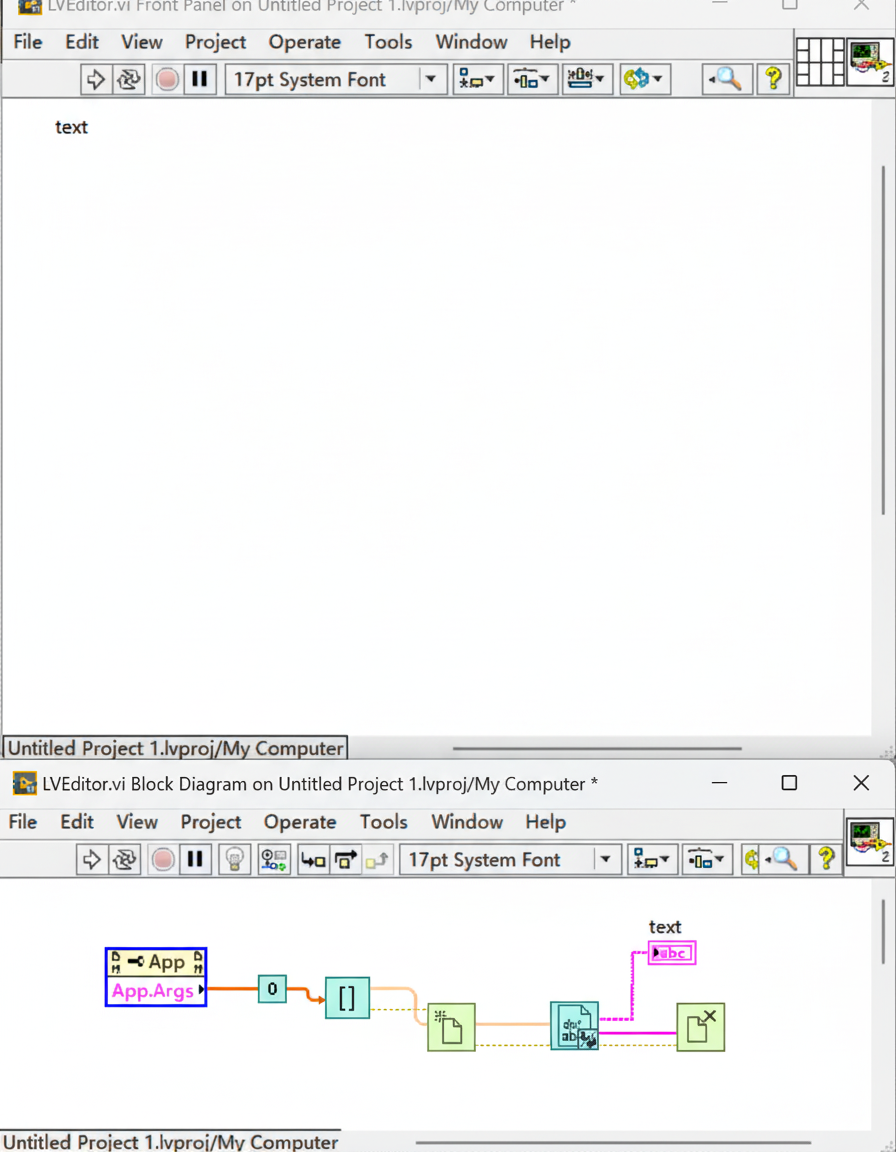
After building the executable and setting the .txt file type to open with LVEditor.exe, double-clicking test.txt opens the file and the application reads and displays its contents.