1. S7-1200 memory card overview
The S7-1200 CPU uses an SD memory card. The memory card can store the user project files and supports the following functions:
- Boot storage: The user project can be stored only on the card. If the CPU does not have the card, it has no project files and cannot run without the card.
- Transfer medium: With a programmer available, the card can be used to transfer project files to multiple S7-1200 PLCs. It can also clear CPU-stored projects and passwords when the password is forgotten.
- Firmware update: The 24 MB card can be used to update the S7-1200 CPU firmware.
How to insert the memory card: Open the CPU cover and locate the MC card slot at the top right. Insert the card with the notch facing up.
Notes
- The memory card is not mandatory for the S7-1200 CPU.
- Inserting a memory card into a running CPU can stop the CPU.
- The S7-1200 CPU supports only memory cards preformatted by Siemens. Order numbers and capacities are shown below.
| Order number | Capacity |
|---|---|
| 6ES7 954-8LF01-0AA0 | 24 MB |
| 6ES7 954-8LC01-0AA0 | 4 MB |
| 6ES7 954-8LB01-0AA0 | 2 MB |
If a SIMATIC memory card is reformatted using Windows, the CPU cannot use the reformatted card.
At present, the S7-1200 does not support advanced functions such as recipe management and data archiving via the memory card.
2. Memory card modes
The memory card has two operating modes:
- Program card: The card serves as the S7-1200 CPU boot storage. All programs and data are stored on the card; no project files reside in the CPU's internal storage. Do not remove the card while the device is running.
- Transfer card: Used to transfer project files from the memory card to the CPU. After transfer is complete, the card must be removed. The CPU can run independently without the card.
To change the memory card mode: In the STEP 7 Basic project view, select Project view → SIMATIC Card Reader → your card reader model, then right-click the card drive letter and choose Properties. In the Card Type setting, select the desired mode and confirm.
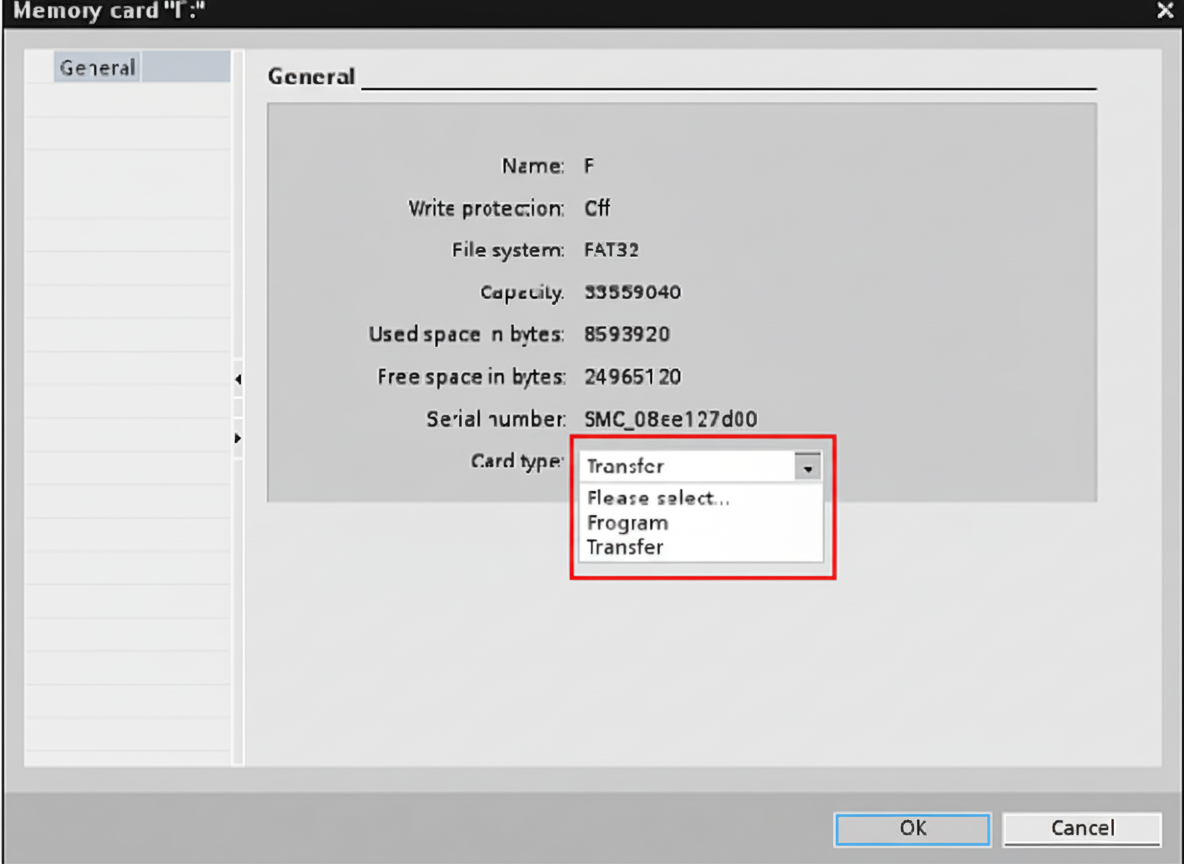
Figure: Memory card properties
3. Program card behavior
Advantage: When replacing the CPU, it is not necessary to re-download the project files.
3.1 Uploading user files to the memory card
- Set the memory card to Program card mode as described above. It is recommended to clear all files on the card before this operation.
- Set the CPU startup mode. In the project tree, right-click the CPU, select Properties, then Startup, and choose Warm restart - RUN mode.
Figure: Startup settings
- Power off the CPU.
- Insert the memory card into the CPU slot.
- Power on the CPU.
- In STEP 7 Basic, click Download to download the entire project to the memory card. The download writes project files (including user program, hardware configuration, and forced values) to the memory card, not to the CPU internal storage.
After these steps the CPU can run with the card present. If the card is removed while running, the CPU reports an error and the ERROR LED flashes red.
3.2 Common issues
FAQ 1
Q: After inserting the memory card the CPU MAINT LED flashes. During download STEP 7 Basic reports "The download of the hardware configuration failed (0050 -133 2 2458)".
A: Clear all files on the memory card, set the card to Program card mode again using STEP 7 Basic, and repeat the steps. Also check the write-protect switch on the card to ensure it is not write-protected.
FAQ 2
Q: After power cycling the CPU enters STOP instead of RUN.
A: The CPU startup mode is not set to Warm restart - RUN mode. Refer to step 2 above to set the startup mode.
4. Using transfer card mode
Advantage: When a programmer is available, a transfer card can be used to copy project files to multiple S7-1200 PLCs.
4.1 Loading a project onto a card in transfer mode
- Set the memory card to Transfer card mode as described above. Clear all files on the card before this operation.
- Set the CPU startup mode to Warm restart - RUN mode as described in section 3.
- Drag the PLC device from the project to the memory card drive letter.
It is also possible to convert an existing Program card into a Transfer card.
4.2 Copying a project from the memory card to an S7-1200 PLC
- Power off the CPU.
- Insert the memory card into the CPU slot.
- Power on the CPU. The CPU MAINT LED will flash yellow.
- Power off the CPU and remove the memory card.
- Power on the CPU.
FAQ
Q: After power cycling the CPU enters STOP instead of RUN.
A: Ensure the CPU startup mode is Warm restart - RUN mode. Also verify in step 3 that the entire PLC project was dragged to the memory card drive, not only program blocks. Partial downloads may omit hardware configuration and other required files.
5. Clearing the CPU password using a memory card
If the CPU password is forgotten, resetting to factory defaults does not clear the internal program and password. Using a memory card is the only method to clear the password. Steps:
- Power off the S7-1200 device.
- Insert a memory card into the CPU. The memory card program must not be password-protected.
- Power on the S7-1200 device.
When the CPU powers up, it copies the program from the memory card into internal FLASH, which clears the stored password.
Alternatively, insert a new or blank memory card into the CPU and power on. The CPU will transfer the internal program to the memory card. After removing the card, the CPU internal storage will no longer contain user programs, effectively clearing the password. The memory card contents can be cleared using a card reader.
Note: Do not format the memory card.