Overview
This guide describes common methods to connect a set-top box to the network, using a ZTE set-top box as an example. It covers both wireless (Wi-Fi) and wired connections, and how to save network settings so the box reconnects automatically on reboot.
Error example
If the set-top box displays a message such as "Unable to access network! Please reconnect to the network", follow the steps below to configure network access.

Connection methods
The two common connection methods are:
- Wireless access
- Wired access
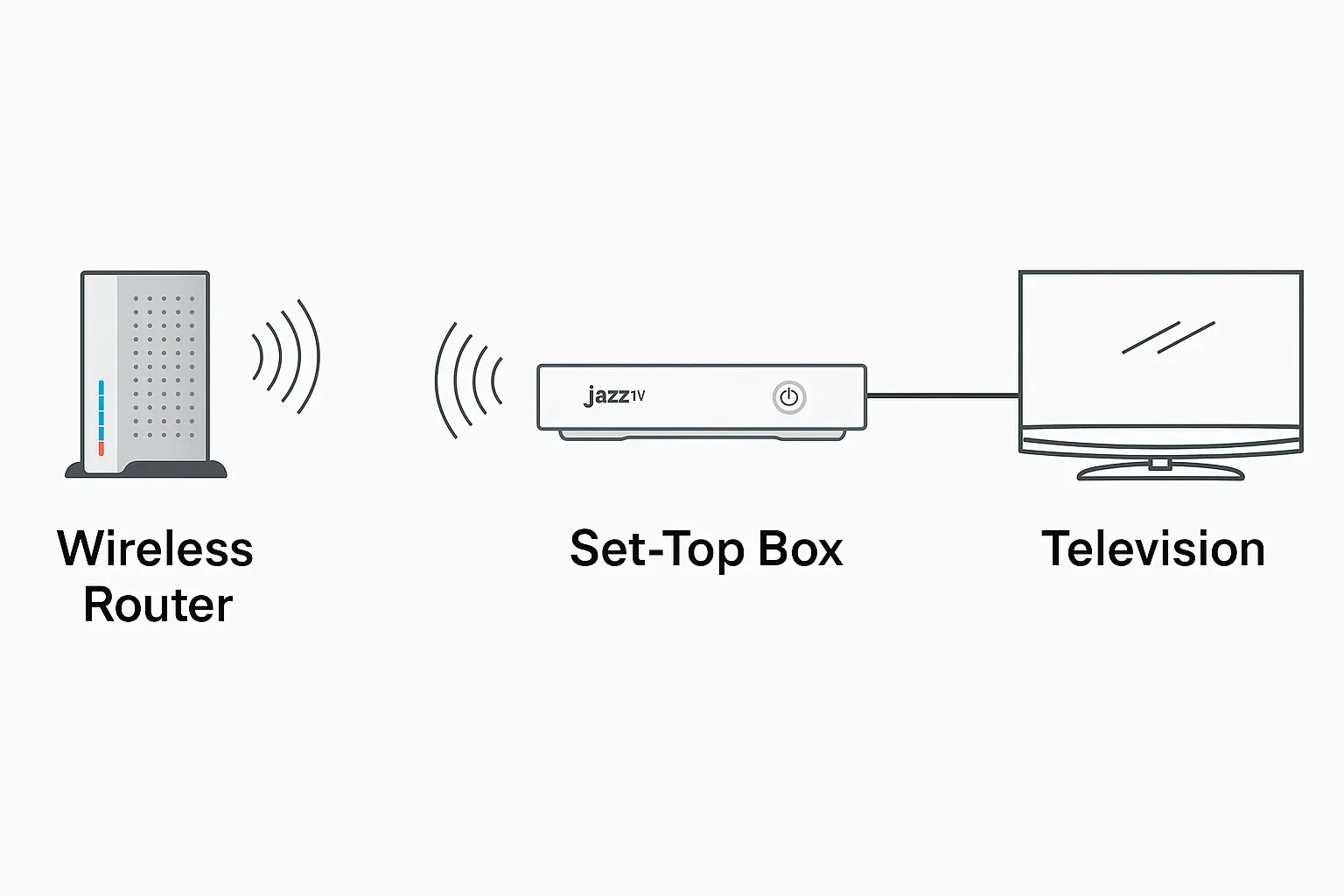
1. Wireless (Wi-Fi) network setup
1. Press the Settings button on the remote. When prompted for a password, enter 6321 and confirm to enter the main settings interface.
2. Select the menu Wireless and Network > Wireless Network to open the wireless network settings. If the Wireless Network option is not present, the set-top box does not support wireless access.
3. Enable the Wireless Network option in the upper-right corner. The device will scan and list nearby wireless networks automatically.
4. Select the desired network and enter the network password to connect.
Save or modify saved wireless network settings
To ensure the set-top box reconnects automatically after reboot, modify and save the wireless network parameters:
a. Select the saved wireless network and press and hold the OK button on the remote to open the options menu.
b. Choose Modify Network to change the wireless network parameters, then save the settings.
2. Wired network setup
1. Connect the set-top box to the network using an Ethernet cable.
2. Press the Settings button on the remote. When prompted for a password, enter 6321 and confirm to enter the main settings interface.
3. Select the menu Wireless and Network > Wired Network to open the wired network settings.
4. Use the remote's right directional key or > then press OK to enable the wired network. The switch in the upper-right will change from "Off" to "On".
Automatic IP (DHCP)
1. Select the Obtain IP Automatically option to open the DHCP settings.
2. If required by the network, select Username and press OK to open the on-screen keyboard. Use the remote to enter the DHCP username.
3. Select Password and press OK to enter the DHCP password.
4. Choose the DHCP authentication type. The box supports 3DES+MD5 and SHA-1 authentication. Note: Selecting 3DES+MD5 or SHA-1 requires a DHCP authentication server on the network. If no authentication server is available, select NO AUTH.
5. Select Complete. The set-top box will obtain an IP address automatically and connect to the network.
Manual IP
1. Select the Manual IP option to open the manual IP configuration screen.
2. Use the remote to enter the IP address, subnet mask, gateway, primary DNS, and optional secondary DNS.
3. Select Complete. The set-top box will use the manually configured IP parameters to access the network.
PPPoE dial-up
1. Select the PPPoE dial-up option to open the PPPoE settings screen.
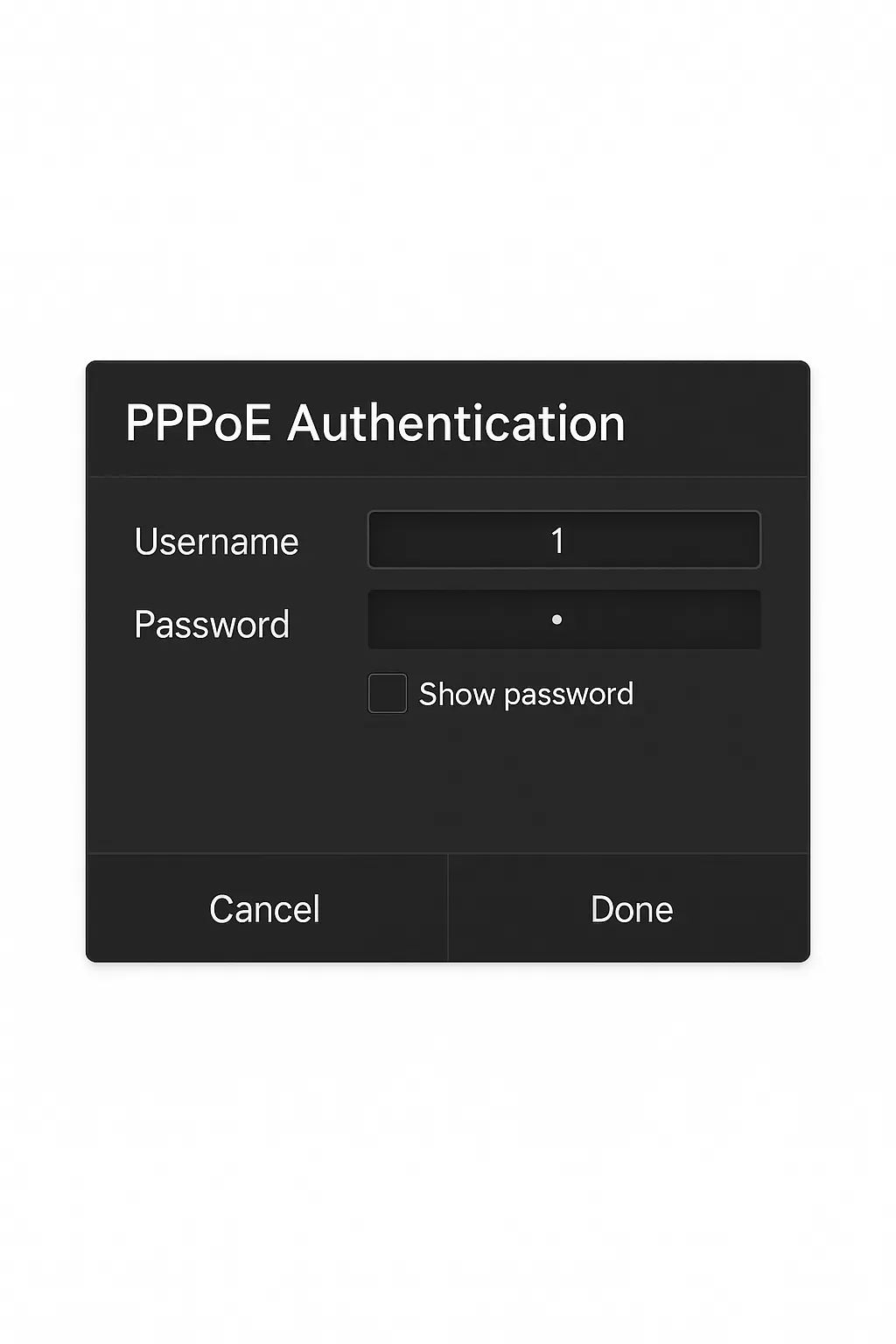
2. Use the remote to enter the PPPoE username and password, then select Complete. The set-top box will connect using PPPoE dial-up.