




AIVON KiCad Plugin: Order PCB From KiCad
Key Moment
What This Video Covers
This tutorial shows how to install the free AIVON KiCad plugin and move from a finished layout to a production-ready order without manually exporting Gerbers and uploading them on a separate website. The video walks through KiCad's Plugin and Content Manager, the Fabrication Plugins tab, pending-change apply, and the AIVON toolbar icon inside the PCB Editor. Before quoting, it emphasizes two factory-critical checks: a clean DRC and a complete board outline so CAM can read dimensions and layer count correctly.
Once launched, the plugin extracts board parameters, packages manufacturing files, and opens a pre-filled instant PCB quote in the browser. Engineers then confirm quantity, surface finish, solder mask color, and special requirements before adding the job to cart. The same path supports an early PCB prototype or a later PCB assembly quote after bare-board options are locked. The workflow is relevant for IoT, industrial control, consumer electronics, and other teams that iterate boards in KiCad and need fewer file-prep errors between design freeze and fabrication.
Key Highlights
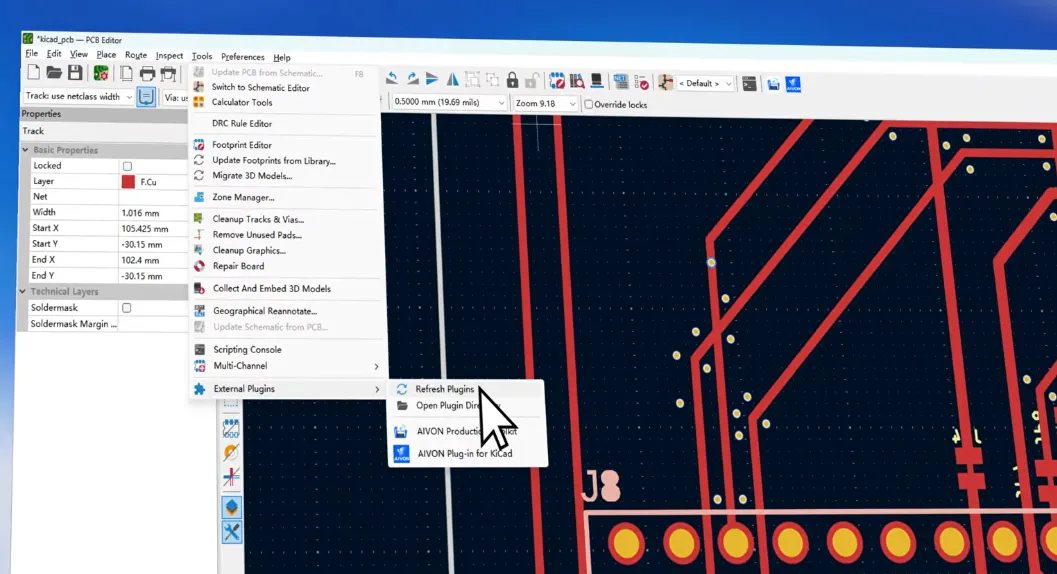
- Install AIVON from KiCad Tools → Plugin and Content Manager → Fabrication Plugins, then Apply Pending Changes; if the toolbar icon is missing, use Tools → External Plugins → Refresh Plugins.
- Do not quote an unfinished board: run DRC and confirm a closed outline so the plugin can extract dimensions, layer count, and a complete production package.
- One click packages files and opens a pre-filled quote page where quantity, ENIG/HASL, solder mask color, and special requirements can still be adjusted before checkout. The plugin is free.
How to Install the AIVON KiCad Plugin in Plugin and Content Manager
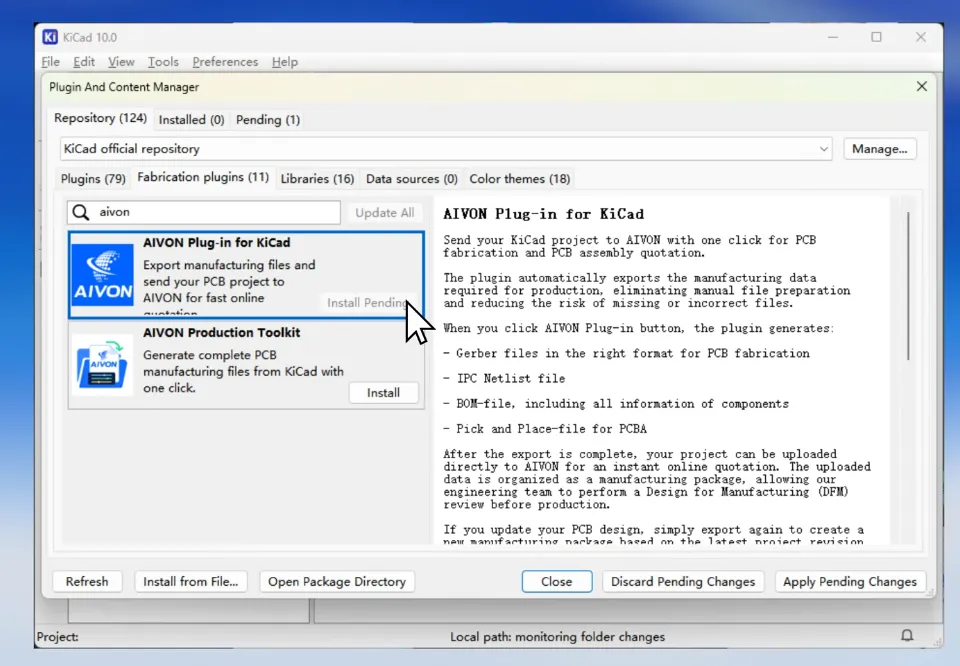
KiCad already includes the distribution path most fabrication plugins use. Launch KiCad, open Tools → Plugin and Content Manager, and switch to the Fabrication Plugins tab. Search AIVON, click Install, then open the Pending tab and click Apply Pending Changes. That last step is easy to skip; until pending changes are applied, the plugin is selected but not loaded into the editor.
After a successful install, open the project in the PCB Editor (not only the project manager or schematic). The AIVON icon should appear on the top toolbar. If it does not, go to Tools → External Plugins → Refresh Plugins. Refresh is the correct first fix when KiCad cached the plugin list before the install finished. Restarting KiCad is a fallback, not the first action.
Keep the install path official. Sideloading zip files from unofficial mirrors is unnecessary for this plugin and increases version mismatch risk against the current KiCad PCM catalog. The plugin is free; there is no paid SKU required to generate a quote.
Search Fabrication Plugins and Apply Pending Changes
Use the Fabrication Plugins tab rather than a generic content search. Fabrication plugins are the class KiCad reserves for manufacturer connectors, so AIVON appears with other ordering tools instead of schematic utilities. After Install, always confirm the Pending tab is empty. A leftover pending item means the editor is still running the previous plugin set.
Refresh External Plugins If the Toolbar Icon Is Missing
Icon absence is usually a UI refresh issue, not a failed download. Refresh External Plugins, confirm you are in PCB Editor, and check that the toolbar is not in a compact/hidden state. If multiple KiCad versions are installed on one machine, install the plugin in the same version used to open the board. Mixing KiCad 8 and KiCad 9 profiles is a common reason a plugin "installs" but never appears on the expected toolbar.
DFM Checks to Complete Before You Generate a Quote
The plugin packages what is currently in the PCB Editor. It does not repair an open outline, unresolved DRC violations, or missing courtyard collisions. Factory CAM still needs a closed board shape to calculate dimensions, panelization, and routing path. An incomplete Edge.Cuts layer is one of the most frequent reasons an "instant" quote later needs a file resubmission.
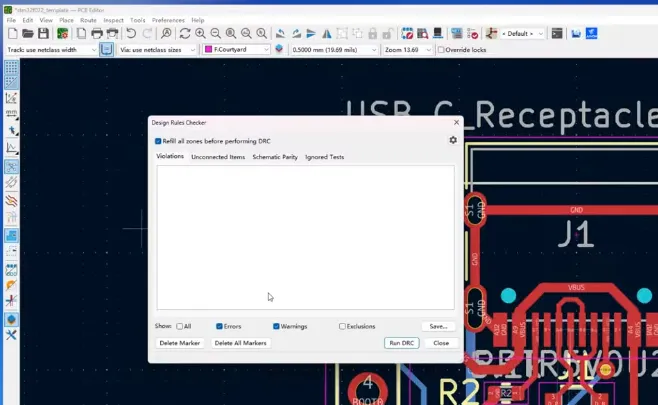
Run DRC and clear errors that affect copper-to-outline clearance, hole-to-hole spacing, annular ring, and unconnected items you actually intended to route. Warnings that are intentional (for example, a test coupon or a castellation note) should be documented in the special-requirements field on the quote page, not ignored. If the stack-up is a standard FR4 PCB, confirm layer count and copper weight in Board Setup before clicking the plugin so the extracted parameters match the intended fabrication stack.
For multilayer work, verify that layer names and pair definitions match the intended 4-layer or 6-layer construction. A plugin can only send the board you drew. If inner layers are empty placeholders or the outline exists only on a graphic layer, the quote page may show a correct layer count with an unusable contour.
Run DRC and Confirm a Closed Board Outline
Treat DRC plus outline as a gate, not a suggestion. Closed contour, correct units, and no overlapping edge segments prevent dimension mismatches between KiCad and the quote form. If you use a rounded rectangle or slot, confirm the outline is a single continuous shape. Broken outline segments are a frequent cause of "board size looks wrong" tickets after upload.
Generate a Pre-Filled Instant PCB Quote From the PCB Editor
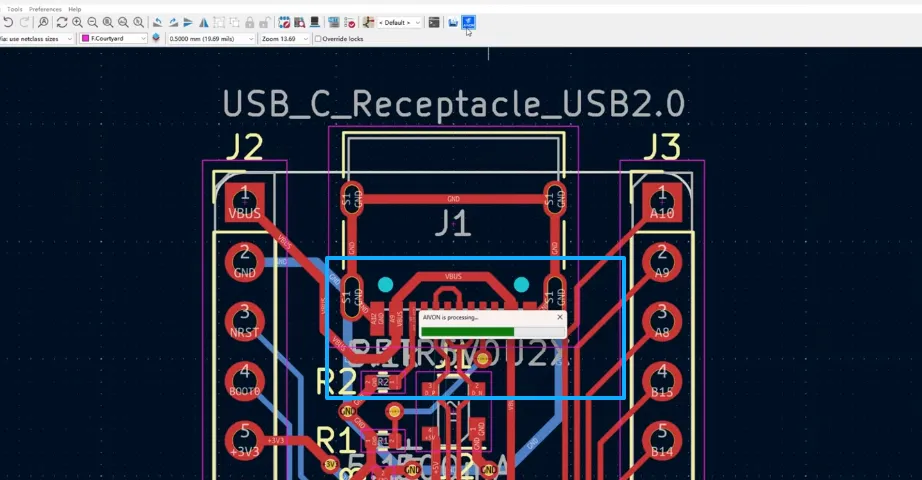
Click the AIVON toolbar icon. The plugin extracts parameters such as dimensions and layer count, packages the production files, and opens the AIVON quotation page in the browser with those fields already filled. That removes the usual cycle of Plot, generate drill files, zip Gerbers, and hope the fab portal parsed every layer.
On the quote page, review imported specifications first. Confirm board size, layer count, and any auto-detected options against Board Setup. Then set commercial and process options: quantity, surface finish, solder mask color, and special requirements (impedance notes, extra electrical test, controlled stack-up, or assembly intent). Click Add to Cart when the configuration matches the design, then proceed to checkout.
This path is built for engineers who iterate quickly: a first-article PCB prototype can be quoted from the same editor session used to freeze the layout. If the next revision needs SMT, keep the bare-board options consistent so a later PCB assembly job uses the same finish and mask system.
Quote Options Engineers Should Verify Before Checkout
Auto-fill is a starting point, not a substitute for process selection. Surface finish should follow the assembly plan: ENIG is typical for fine-pitch, BGA, or gold-finger mating; HASL can be acceptable for through-hole and coarser SMT if flatness is not critical. Solder mask color is cosmetic unless contrast or high-voltage creepage marking matters; still confirm it so silkscreen and mask openings are not revised later.
Quantity should match the real build stage. Quoting a production panel quantity on an untested first spin inflates cost and locks process options you may change after bring-up. Special requirements should capture anything the Gerbers do not say clearly: impedance targets, back-drill, extra plating, or a note that the board will move to turnkey assembly.
| Quote field | What the plugin typically pre-fills | What you should still confirm |
|---|---|---|
| Board dimensions | Extracted from outline | Closed Edge.Cuts, units, and any routed slots |
| Layer count | Read from PCB stack-up | Matches intended 2 / 4 / 6 / 8-layer construction |
| Production files | Packaged from the current editor | DRC clean; no missing copper or drill layers |
| Quantity | Not a design parameter | Prototype vs small-batch vs production intent |
| Surface finish | Default or last-used option | ENIG vs HASL vs other finish for assembly plan |
| Solder mask / silkscreen | Default or last-used option | Color, component-side vs both sides, legend readability |
| Special requirements | Empty unless previously stored | Impedance, test, stack-up notes, assembly follow-on |
Manual File Upload vs AIVON KiCad Plugin Workflow
Manual ordering still works, but every extra export step is a place to drop a layer, mix metric and imperial drill files, or zip an outdated revision. The plugin does not change physics or capability limits. It shortens the path from a frozen KiCad board to a quote form that already contains size and layer data.
| Step | Manual Gerber upload | AIVON KiCad plugin |
|---|---|---|
| Install | None | Free PCM install + Apply Pending Changes |
| Prepare files | Plot Gerbers, generate drills, zip, name layers | Plugin packages production files from the editor |
| Transfer | Browser upload to quote portal | Browser opens with files and parameters pre-filled |
| Parameter entry | Type size, layers, and options by hand | Review extracted size/layers, then set process options |
| Typical failure | Missing outline, stale zip, layer mismatch | Icon not refreshed; quoting before DRC/outline is clean |
| Best use | Non-KiCad sources or heavily customized CAM notes | KiCad-native rigid FR4 and multilayer prototype spins |
For flex, rigid-flex, or unusual materials, use the plugin as the launch point, then confirm process pages such as flexible PCB or rigid-flex PCB capabilities before locking price. The quote form is the right place to change construction; do not assume every KiCad board is a default FR4 two-layer job.
Common Ordering Failures the Plugin Helps Prevent
Most delays after "files uploaded" are not plating problems. They are incomplete packages: no board outline, drill file generated with the wrong mirror, soldermask layer omitted, or a zip from revision B while the schematic is already on revision C. The plugin reduces those mismatches by packaging the live editor state at click time.
It does not prevent design-rule escapes. A board that violates minimum annular ring or mask sliver rules will still be flagged in CAM. Run DRC against the manufacturer's capability window, not only KiCad's default constraints. If you later need PCB mass production, freeze finish, mask, and stack-up on the prototype that already passed assembly, rather than changing ENIG to HASL between EVT and DVT.
Recommended sequence for engineering buyers and OEM teams: complete layout → DRC + outline check → plugin quote → review finish/mask/qty → add to cart → only then start BOM/SMT planning. That order keeps fabrication parameters stable when procurement compares price and lead time.
FAQ
Q1: Does the AIVON KiCad plugin cost anything to install or generate a quote?
A1: No. The plugin is free to install from KiCad's Plugin and Content Manager. Generating a pre-filled quote does not require a paid plugin license. You pay only for the fabricated boards (and optional assembly) when you check out.
Q2: What should I do if the AIVON icon does not appear on the PCB Editor toolbar?
A2: Confirm Apply Pending Changes was clicked after Install. Open the board in PCB Editor, then use Tools → External Plugins → Refresh Plugins. If multiple KiCad versions are installed, install and launch the plugin in the same version that owns the project.
Q3: Can I still change quantity, surface finish, and solder mask after the plugin opens the quote page?
A3: Yes. The plugin pre-fills extracted board data such as dimensions and layer count. Quantity, ENIG/HASL or other finish, solder mask color, and special requirements are reviewed and adjusted on the quote page before Add to Cart.
Q4: Does the plugin remove the need to run DRC or check Edge.Cuts?
A4: No. The plugin packages the current design. An open outline or unresolved DRC errors still produce CAM questions or a wrong board size. Run DRC and confirm a closed outline before clicking the icon.
Q5: Can I use this workflow for a prototype now and assembly later?
A5: Yes. Quote and fabricate the bare board from KiCad first, keeping finish and mask compatible with SMT. When components are ready, submit a separate assembly quote using the same board revision rather than changing construction after the fab job is already in process.
Want to order your PCB directly from KiCad without manually exporting and uploading your manufacturing files?In this tutorial, we'll show you how to install and use the AIVON KiCad Plugin to generate a quote and start your order in just a few clicks.
First, let's install the plugin using KiCad's built-in Plugin and Content Manager.
Launch KiCad and go to Tools → Plugin and Content Manager.
Click on the Fabrication Plugins tab.
In the search box, type AIVON.
Click Install, then switch over to the Pending tab and click Apply Pending Changes.
Once installed, open your project in the PCB Editor. You’ll see the new AIVON icon on your top toolbar. If it doesn't show up immediately, just go to Tools → External Plugins → Refresh Plugins.
Before generating your quote, make sure your board is ready for manufacturing. We recommend running a DRC and checking that your board outline is complete.
Now, simply click the AIVON icon on the toolbar.
The plugin automatically extracts your board parameters—like dimensions and layer count—packages your production files, and opens the Aivon Quotation Page in your browser with everything pre-filled.
On the quote page, Review the imported board specifications, then adjust the options you need, such as quantity, surface finish, solder mask color, and any special requirements.
Click Add to Cart to continue with your order. Then you're ready to check out!
The plugin reduces manual file preparation and helps streamline your ordering workflow.
The plugin is 100% free to install. Give it a try on your next project!