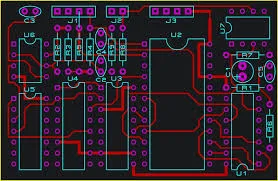





PCB layout time is often lost on layer switching, view changes, and distance checks. The routing idea is clear, then the work stops in menus. These nine Altium Designer shortcuts cover the operations used most often.
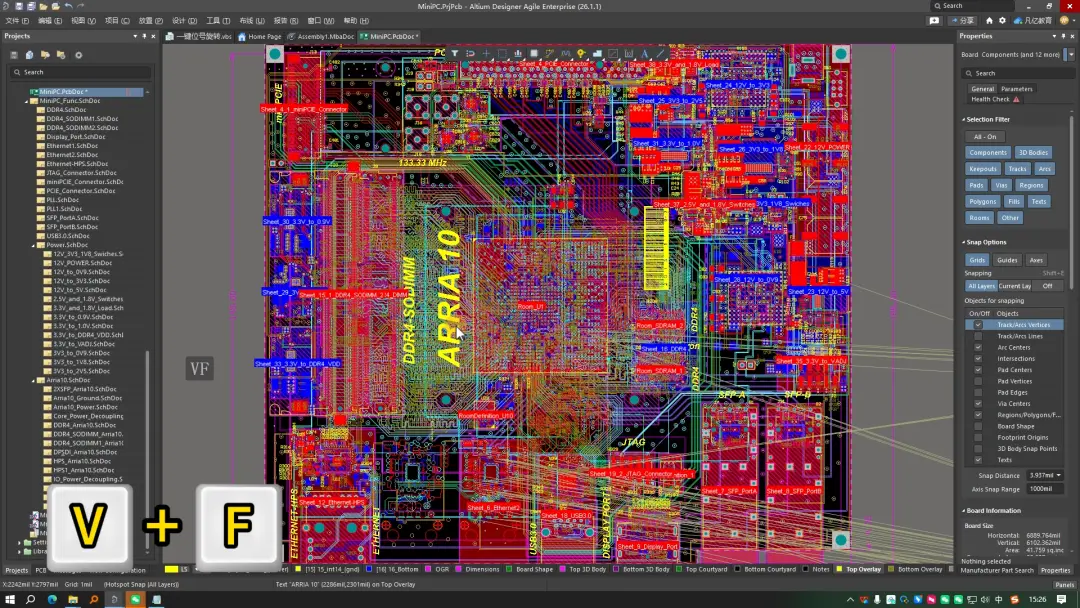
1. VF: Fit the Board to the Screen
If the view is zoomed too far and parts disappear, VF fits the full PCB to the screen so the overall placement is visible again without dragging the view by hand.
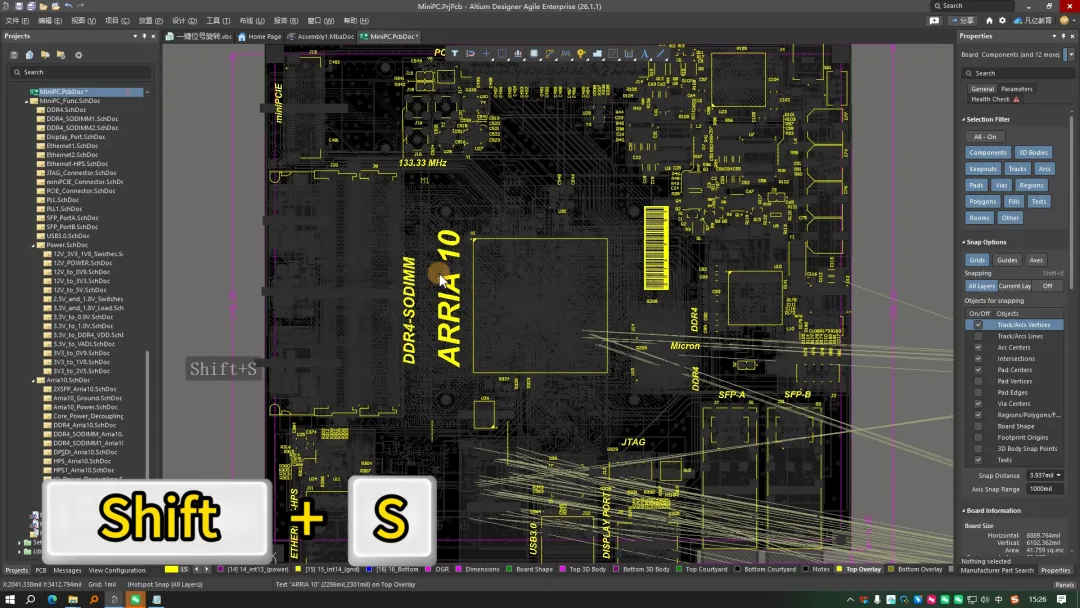
2. Shift+S: Single-Layer and Multi-Layer View
Shift+S switches between a single-layer view for trace inspection and a multi-layer view for overall placement, without opening layer-display settings in the menu.
3. V+B: Flip About the Cursor
V+B flips the board about the mouse position so top and bottom placement can be checked quickly. The article states this is much faster than using the menu, especially on two-layer boards.
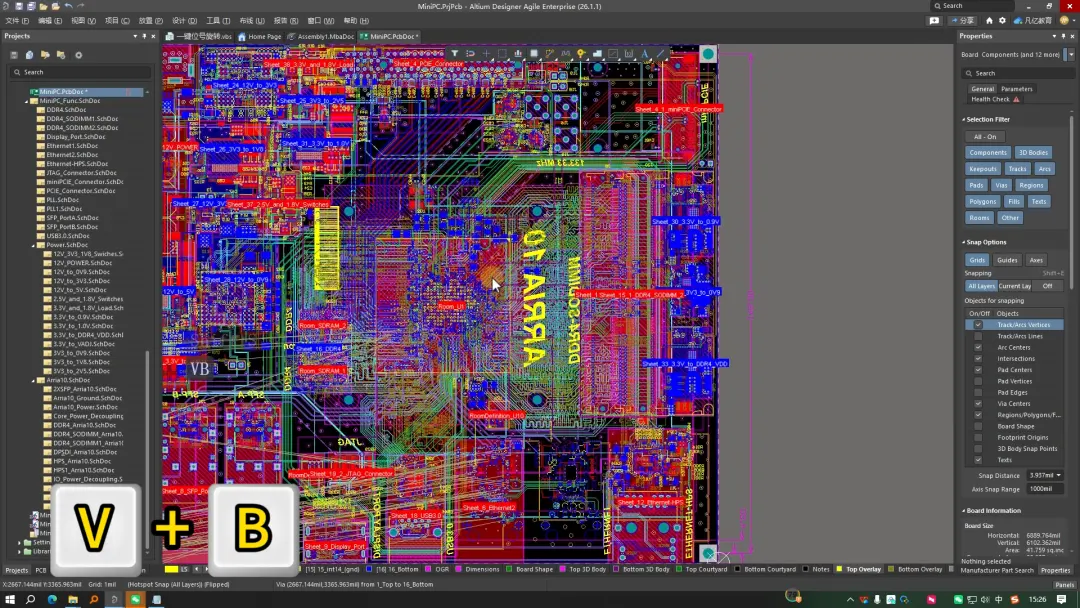
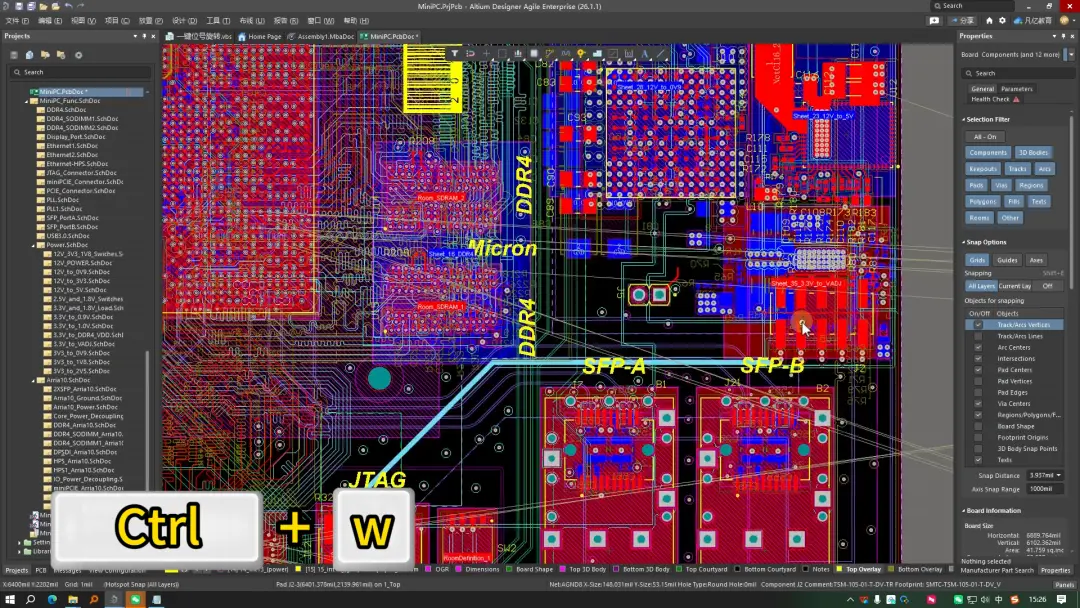
4. Ctrl+W: Start Routing
Ctrl+W starts interactive routing without clicking the toolbar icon, so routing can continue without breaking the flow.
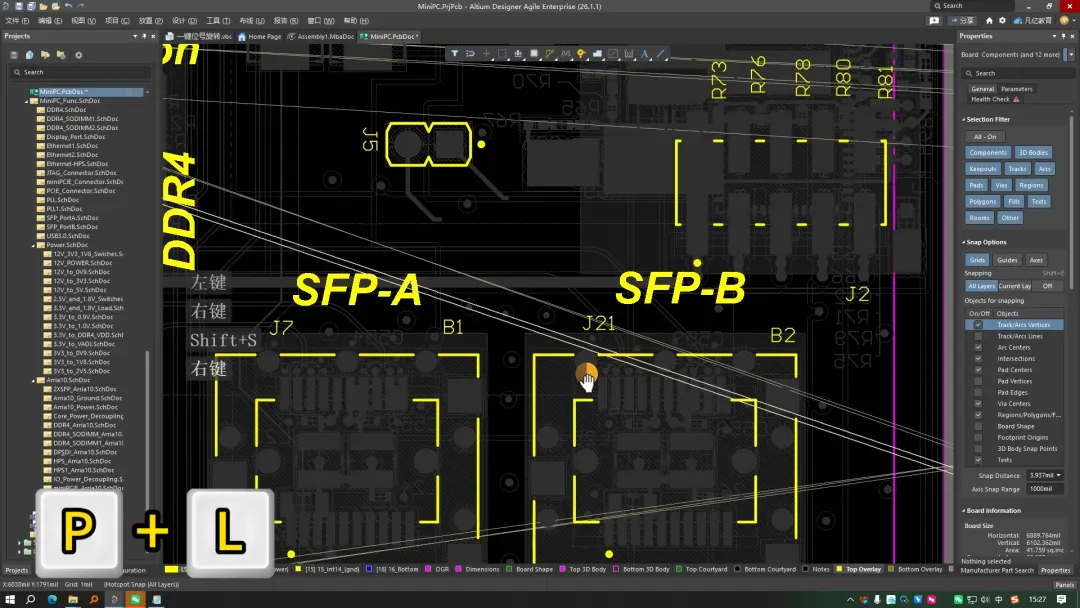
5. P+L: Draw a 2D Line on Silkscreen
P+L draws a 2D line on the silkscreen layer for marks and outlines, with the line placed on that layer directly.
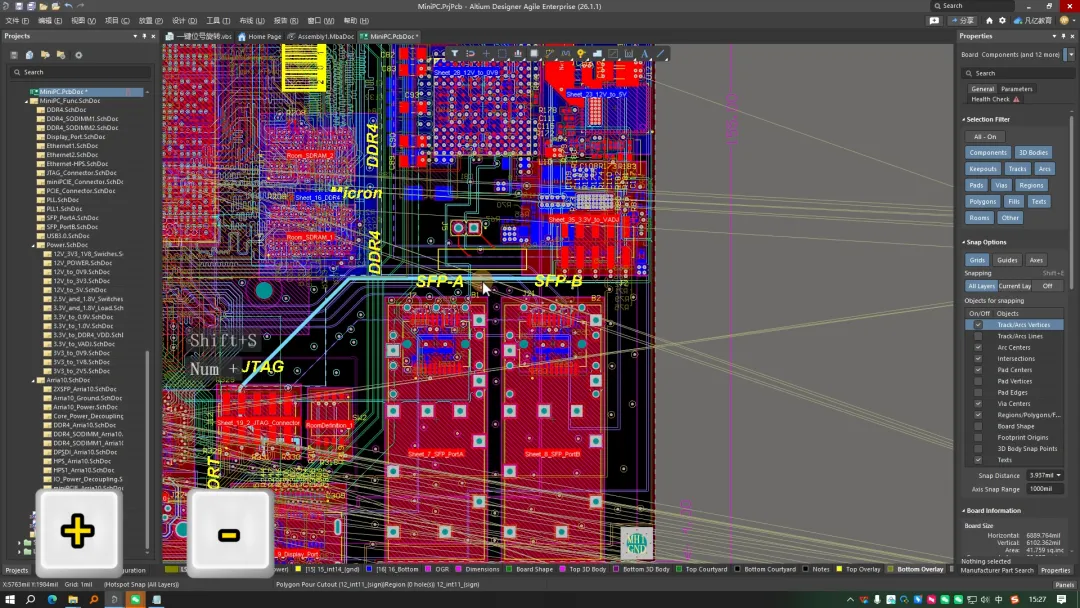
6. Keypad +/− and Q: Layer and Unit Switching
- Keypad + and − step through layers without picking them from the layer list.
- Q switches units between millimeters (mm) and mils to match the design rules without a separate setup dialog.
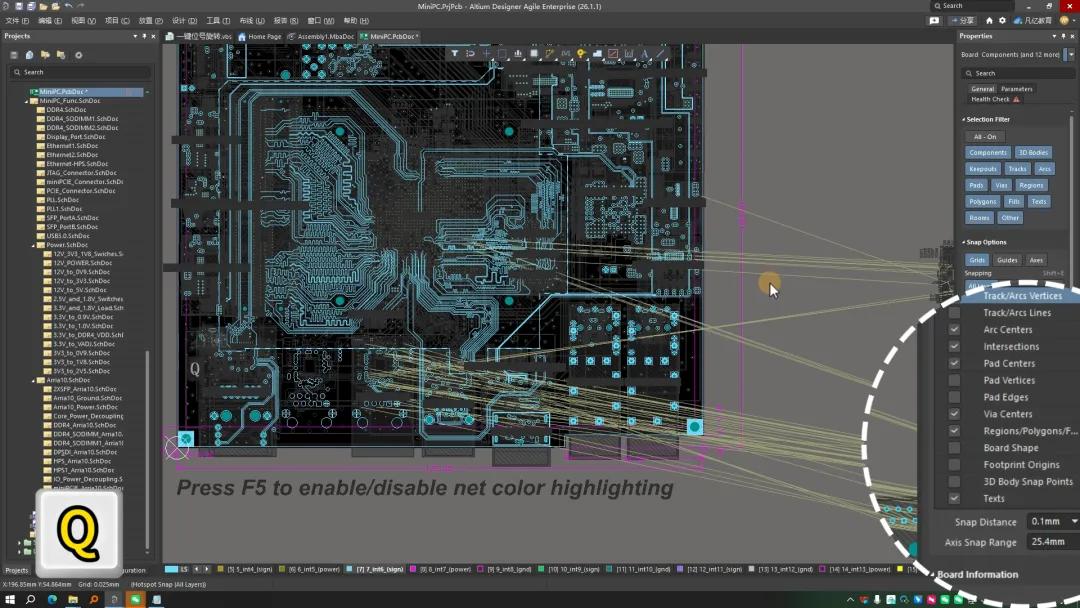
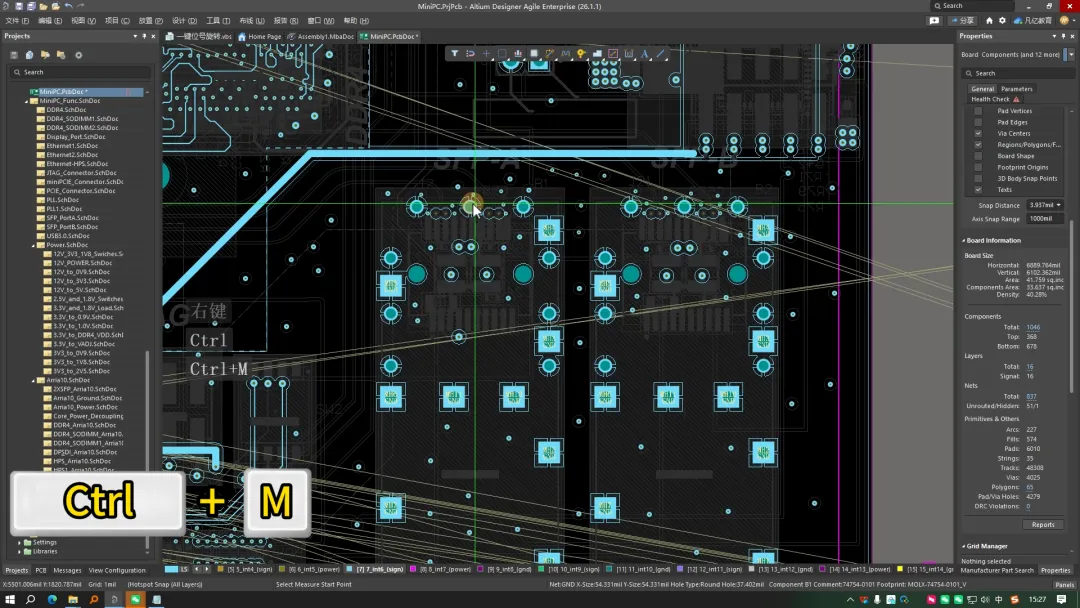
7. Ctrl+M: Measure Distance
Ctrl+M starts the measure tool. Click two points to read component spacing or trace length and catch clearance errors before they ship.
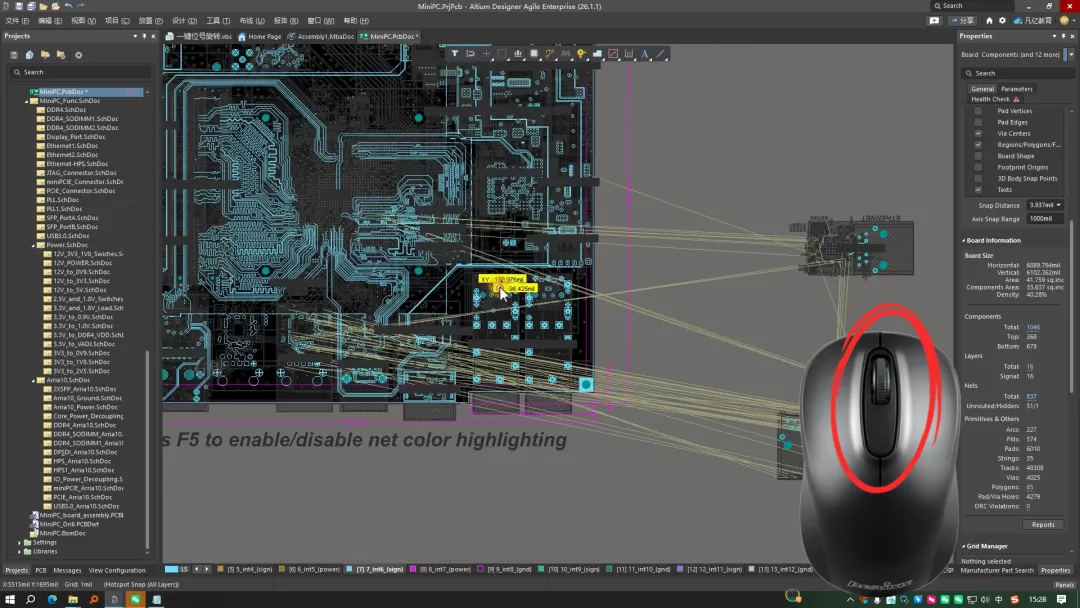
8. Middle Mouse Button: Pan Zoom
Hold the middle mouse button and push forward to zoom in, or pull back to zoom out. The article describes this as more flexible than wheel zoom for locking onto a detail that needs an edit.
A Note on Learning the Shortcuts
These nine commands are used many times a day. Memorizing them removes repeated menu searches. Low-frequency shortcuts can stay in the menu until they are needed. Keep attention on the operations that actually move the design.
Used together, they speed layout and reduce mis-clicks during a deadline. Practice them in Altium Designer until they are automatic.