A PCB can be perfectly fabricated and still stop at the assembly house because the Bill of Materials is incomplete or inconsistent. Missing manufacturer part numbers, mismatched reference designators, duplicate entries, or vague descriptions force the assembler to pause production, send questions, or substitute parts. In professional PCBA workflows the BOM is not a simple parts list—it is the primary document that drives purchasing, kitting, and placement.
This guide explains how to generate accurate BOM files from KiCad, what information assembly manufacturers actually need, how to format the data correctly, and how to avoid the most common problems that delay production. The goal is to help you export a BOM that moves straight from design into assembly without clarification loops.
What Is a BOM File?
A Bill of Materials (BOM) is a structured list of every component required to assemble the board. It links each reference designator on the PCB to a specific part that can be purchased and placed. For PCB assembly the BOM must contain enough detail for the manufacturer to buy the exact components and load them into pick-and-place or manual assembly stations.
BOM accuracy directly affects assembly yield and schedule. An incomplete or ambiguous BOM is one of the top causes of production delays and incorrect part placement.
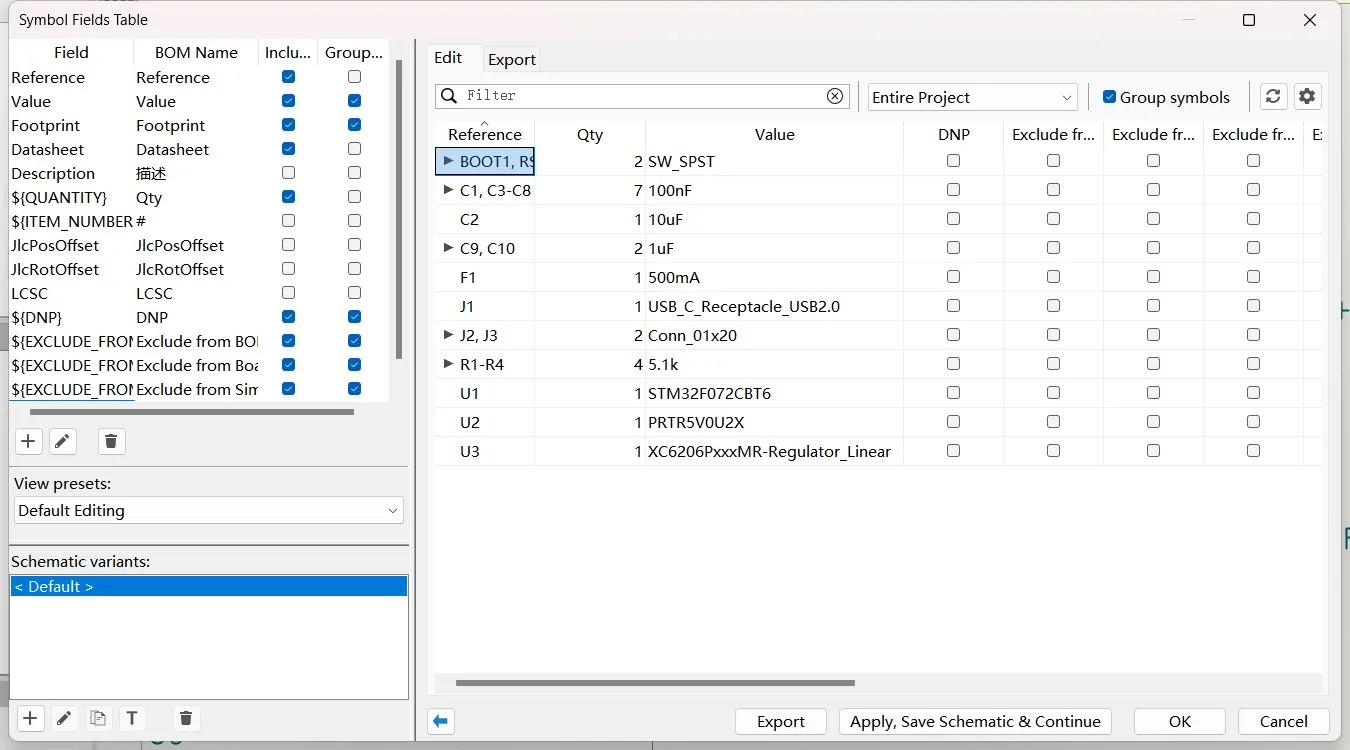
Understanding BOM Information
A usable assembly BOM typically includes the following fields:
- Reference designators – Unique identifiers (R1, C5, U3, etc.) that match the silkscreen and the pick-and-place file.
- Component values – Resistance, capacitance, voltage rating, tolerance, or other defining parameters.
- Manufacturer part numbers (MPN) – The single most important field for professional assembly. Generic descriptions are not sufficient.
- Quantity – Total number of that exact part required.
- Footprint / package – Helps the assembler confirm physical compatibility.
- Supplier information (optional but useful) – Preferred distributor and supplier part number.
- Placement side or DNP notes – Indicates top/bottom side or "do not place" status.
Missing any of the critical fields (especially MPN) forces the assembler to interpret or request clarification, which slows the process and introduces risk.
Generating BOM in KiCad
BOM Export Tools
KiCad provides several ways to generate a BOM:
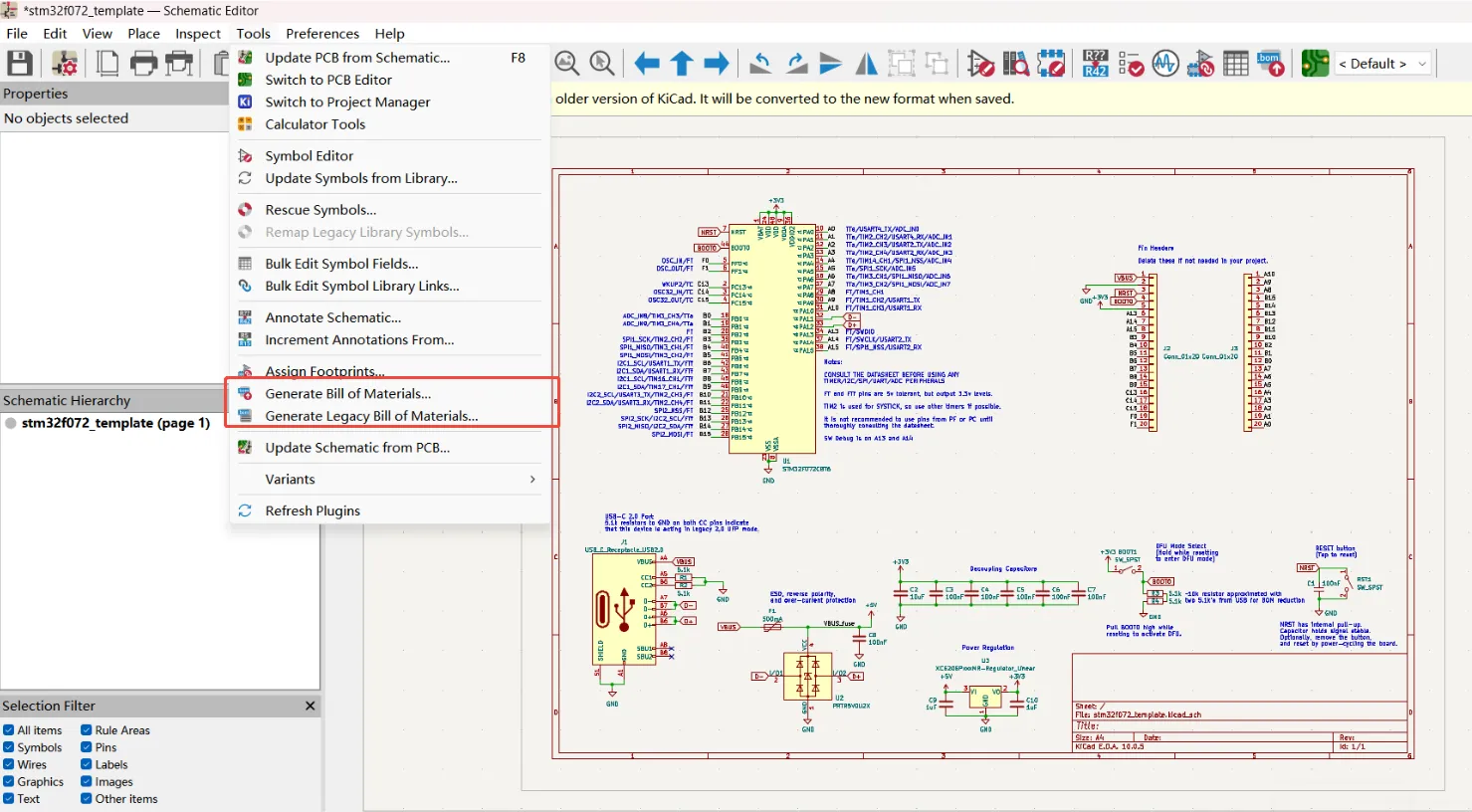
- Schematic Editor → Tools → Generate Bill of Materials
- Built-in BOM plugins (Python scripts) that output CSV, TSV, or XML
- External plugins that produce Excel-ready or manufacturer-specific formats
For most assembly work a clean CSV or Excel file is preferred.
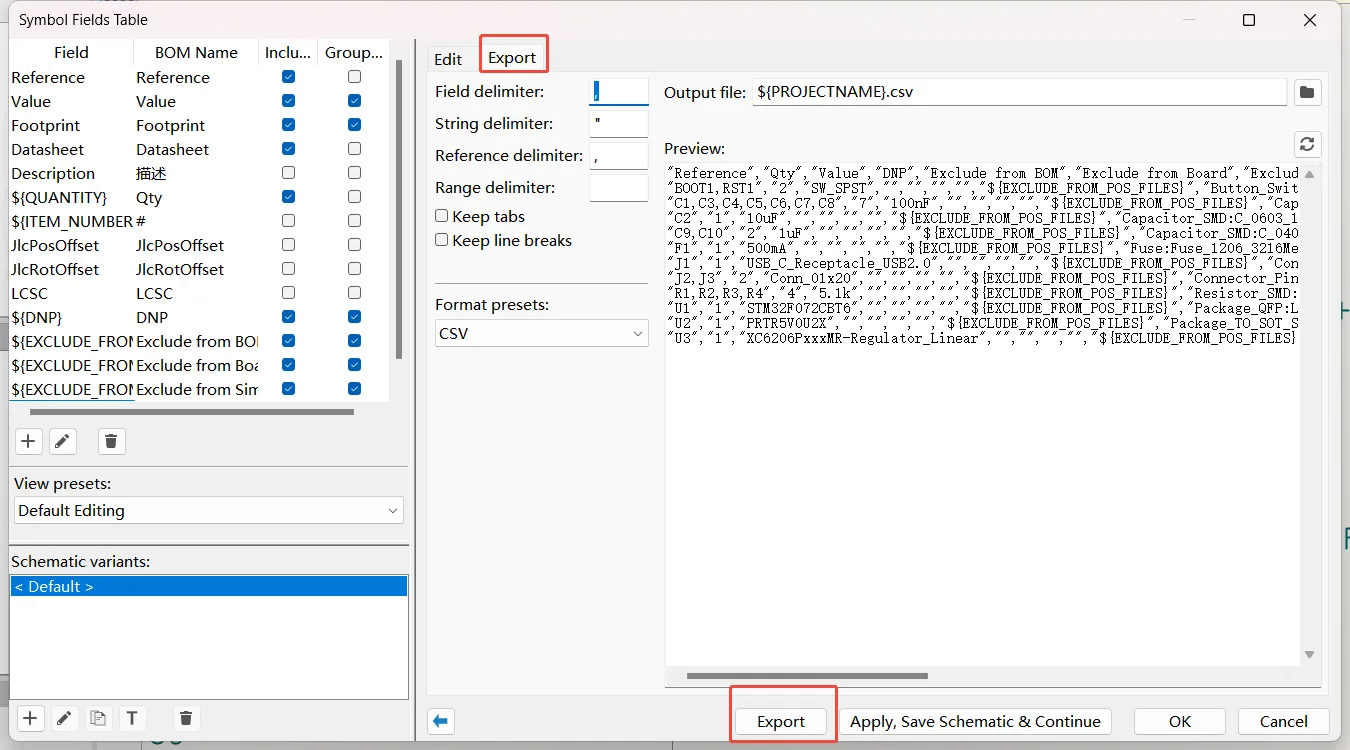
Configuration Settings
Before exporting, ensure every symbol has:
- A correct reference designator
- A filled "Value" field
- A footprint assignment
- A manufacturer part number entered in a custom field (commonly named "MPN", "Manufacturer Part Number", or "Mfg Part #")
Group identical components so the BOM shows one line per unique part with the correct quantity and a list of reference designators.
File Formats
CSV is the most widely accepted format. Excel (.xlsx) is also common when the manufacturer requests it. Avoid proprietary or poorly structured formats that require manual re-work. Always open the exported file and verify that columns are correctly separated and that no data is truncated.
Optimizing BOM for Assembly Manufacturers
Standardizing Component Information
Use consistent naming and units across the entire project. Prefer manufacturer part numbers from major suppliers that the assembler already stocks or can easily source. Avoid mixing different brands for the same generic value unless there is a technical reason.
Avoiding Missing Data
Before export, run a check for empty MPN fields, missing footprints, or reference designators that do not appear on the board. Many teams use a simple spreadsheet validation or a KiCad BOM plugin that flags incomplete rows.
Practical guidance: freeze the BOM once the design is stable. Late changes to part numbers after the pick-and-place file has been generated create mismatches that the assembler must resolve manually.
Manufacturing perspective: assembly houses price and schedule jobs partly on BOM quality. A clean, complete BOM reduces their engineering time and lowers the chance of line stoppages.
Common BOM Problems and Solutions
Duplicate Components
Identical parts listed on separate lines with different quantities or descriptions.
Solution: Group by manufacturer part number so each unique part appears once with the full list of reference designators and the correct total quantity.
Incorrect Part Numbers
Typos, outdated MPNs, or part numbers that do not match the footprint on the board.
Solution: Cross-check every MPN against the component datasheet and the actual footprint used in the layout. Keep a validated company library of approved parts.
Missing Manufacturer Information
Rows that contain only a generic value ("10k resistor") with no MPN.
Solution: Make the MPN field mandatory in your schematic library symbols and reject any export that contains empty MPN cells.
Other frequent issues include mismatched reference designators between BOM and pick-and-place file, incorrect quantities, and failure to mark DNP (do-not-place) parts clearly.
BOM Checklist Before PCB Assembly
Before sending the BOM with the rest of the manufacturing package, verify:
- Every component has a manufacturer part number.
- Reference designators match the silkscreen and the pick-and-place file.
- Quantities are correct and identical parts are grouped.
- Footprints listed in the BOM match those used on the PCB.
- DNP parts are clearly identified.
- The file opens cleanly in Excel or a text editor with no formatting errors.
- A quick sample of critical parts (ICs, connectors, polarized components) has been double-checked against the datasheet.
A BOM that passes this checklist is ready for professional PCBA production. When the complete package (Gerbers, drill files, BOM, and pick-and-place data) is consistent, the board can move from fabrication into assembly with minimal risk of file-related delays.
Exporting a reliable BOM from KiCad is a straightforward process once the schematic contains complete data. Treating the BOM as a controlled manufacturing document—rather than an afterthought—significantly improves assembly success and reduces back-and-forth with the manufacturer.
FAQ
Q1: How do I export a BOM file from KiCad for PCB assembly?
A1: In the Schematic Editor go to Tools → Generate Bill of Materials, select the required fields (including manufacturer part number), choose CSV or Excel format, and export. Always verify the output for completeness before sending it to the assembler.
Q2: What information must a KiCad BOM contain for professional assembly?
A2: At minimum it needs reference designators, quantity, value, footprint, and manufacturer part numbers. Supplier part numbers and placement-side notes are also helpful.
Q3: Why do assembly manufacturers reject some KiCad BOM files?
A3: Common reasons are missing manufacturer part numbers, mismatched reference designators, incorrect quantities, or generic descriptions that cannot be purchased. A complete and consistent BOM prevents these rejects.
Q4: How can I avoid duplicate entries in a KiCad BOM?
A4: Configure the BOM tool or plugin to group components by manufacturer part number. Each unique part should appear on one line with the full list of reference designators and the total quantity.
Q5: When should I finalize the BOM in a KiCad project?
A5: Finalize and freeze the BOM after the design is stable and before generating the final pick-and-place file. Late part-number changes create mismatches that delay assembly.