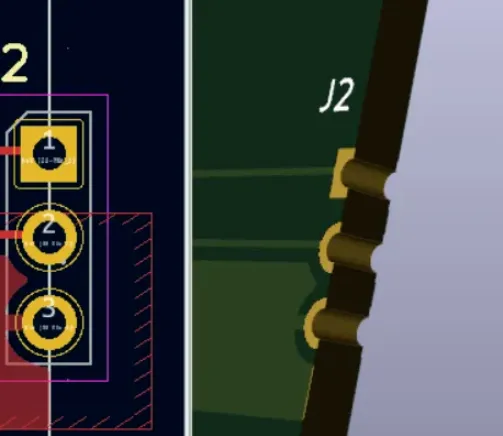
Starting with KiCad 9, footprints can embed STEP 3D models directly instead of merely linking to them. When a 3D model is embedded, it travels with the footprint wherever it goes. As a result, you no longer need to reattach models when copying footprints to another library, relocating a 3D library, or moving a project to a different machine.
What Is an Embedded File?
The schematic and PCB editors in KiCad 9 introduce embedded files. An embedded file is a copy of an external file that is stored inside the PCB or footprint file. KiCad can then reference this internal copy without relying on the file system. This greatly improves project portability because a design carries its own dependencies along with it.
KiCad supports embedding and using engineering resources such as fonts, datasheets, drawings, SPICE models, and footprint 3D models. You can embed arbitrary files as well, although KiCad will not use every arbitrary file type. Embedding increases the footprint or PCB file size, but KiCad compresses files prior to embedding to minimize storage overhead.
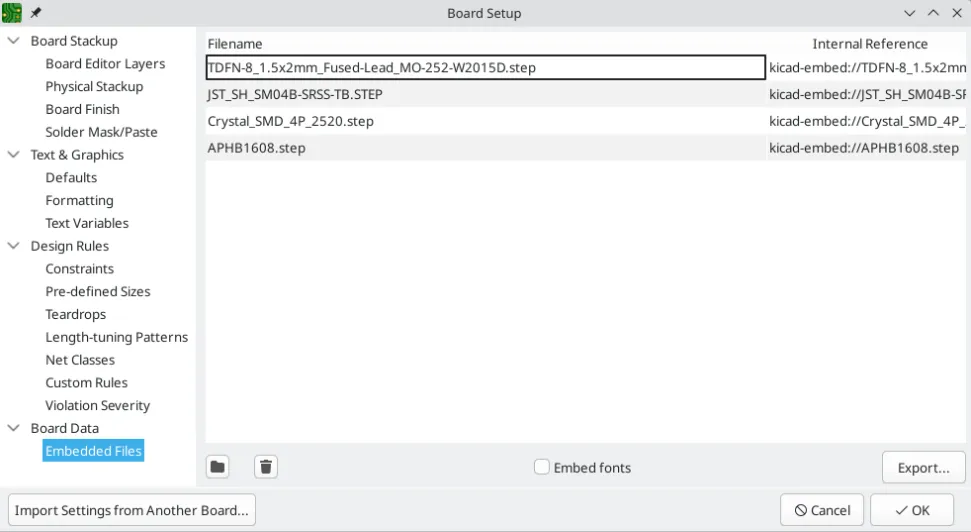
Embedded files panel available in KiCad 9
Embedding a 3D Model in a Footprint
How It Worked Before
Prior to KiCad 9, a footprint and its STEP model were separate files linked by a path set in the footprint properties. Paths could be defined relative to KiCad environment variables or as absolute file-system paths. This approach worked, but it was brittle when relocating libraries or moving a design to another computer because it required copying both the footprint and the STEP model, and often reconfiguring the path to the model in the new environment.
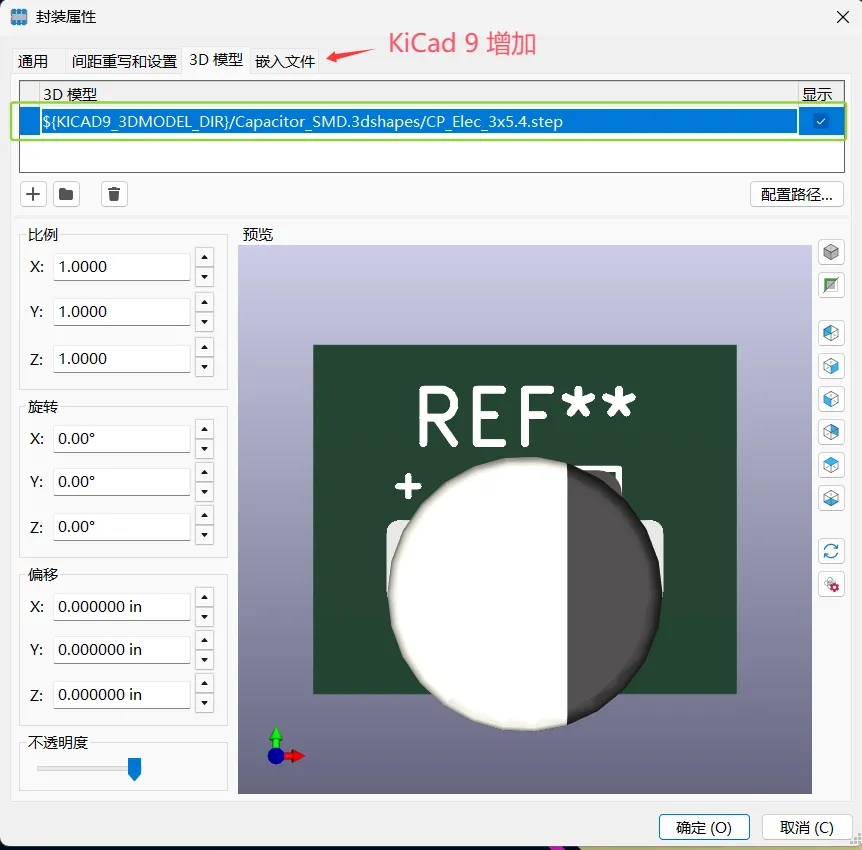
Legacy method: the 3D model is linked via a file path in the footprint properties
New Workflow in KiCad 9
KiCad 9 adds the Embedded Files tab and related controls, allowing you to embed the STEP model in the footprint itself. With this method, a single .kicad_mod file contains both the footprint geometry and the compressed 3D model. When you share or migrate the footprint, you simply copy the footprint file—no separate 3D library management and no path reconfiguration required. The trade-off is an increase in footprint file size due to the embedded model.
Follow these steps to embed a STEP model in a footprint:
- Open or create the footprint you want to edit, then open Footprint Properties.
- Switch to the Embedded Files tab and click the folder icon in the lower-left to add the STEP file you want to embed.
- After adding the file, right-click it and choose Copy Embedded Reference.
- Switch to the 3D Models tab, click the + button, and paste the embedded reference into the model path field.
- Click OK to save, reopen Footprint Properties, and verify the 3D preview.
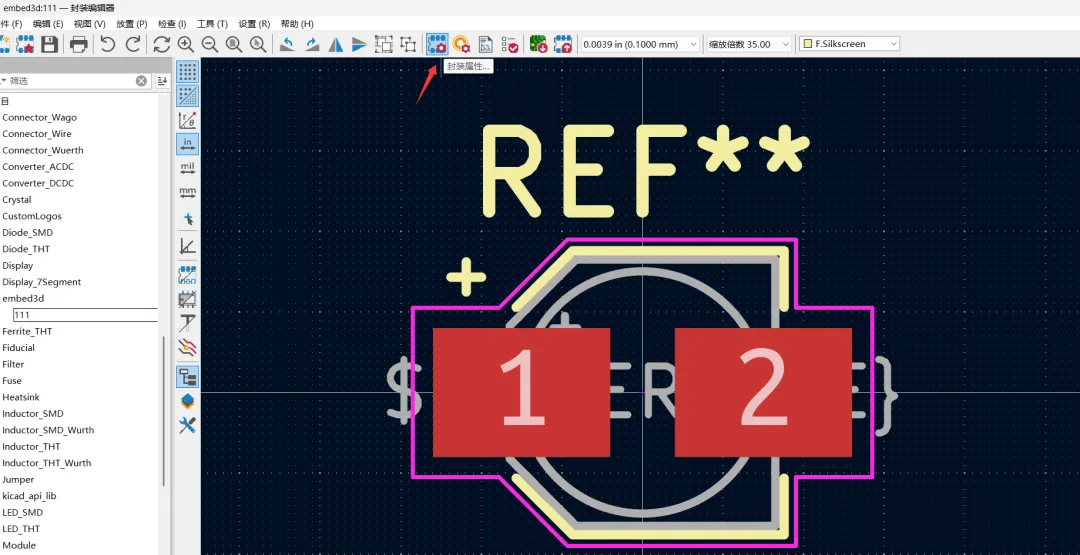
Open Footprint Properties to start embedding
The embedded reference is a unique identifier for the embedded file. It begins with the scheme kicad-embed:// and identifies the compressed copy stored in the footprint or PCB file. From this point on, the footprint references the internal model copy rather than an external file path.
After saving, reopen the footprint properties to confirm the 3D preview shows the embedded model.
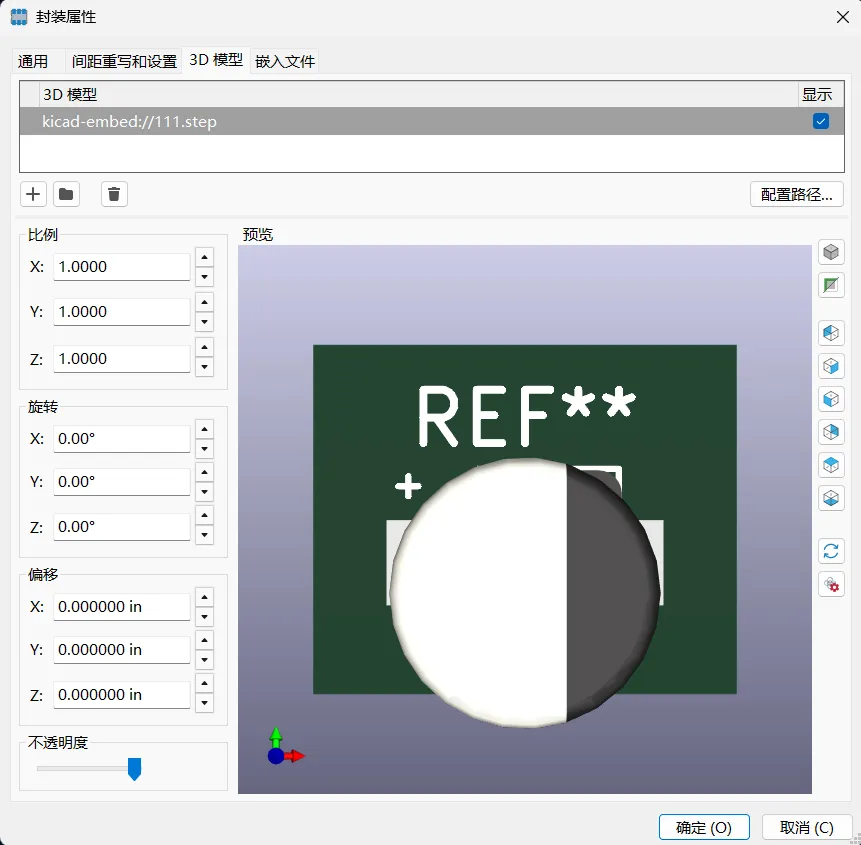
Preview of a footprint using an embedded STEP model
File Size Impact and Storage Format
Embedding a STEP model increases the size of the footprint file. For example, before embedding, the footprint shown here was approximately 7 KB:

Footprint size prior to embedding: about 7 KB
After embedding the 3D model, the footprint file grew to about 24 KB:

Footprint size after embedding the STEP model: about 24 KB
If you open the footprint file in a text editor, you will see that KiCad compresses and embeds the model using a StepZ format. This keeps the increase in size modest while ensuring the model is self-contained.
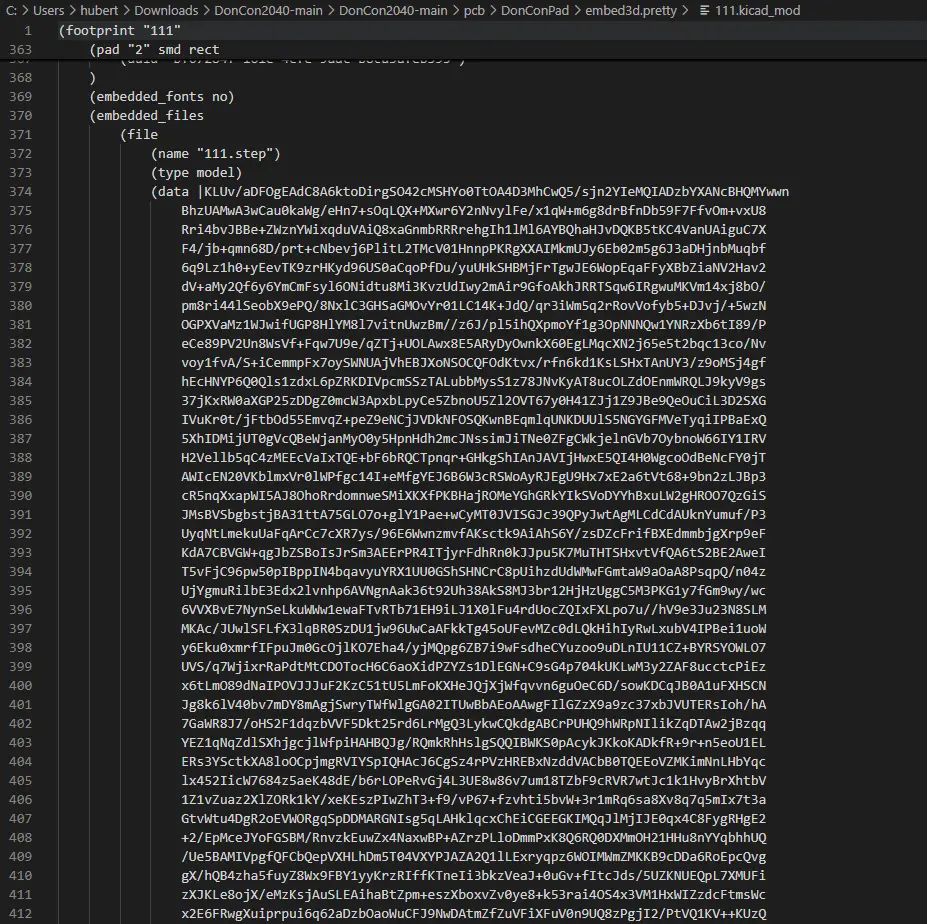
The compressed StepZ payload embedded in the footprint file
Embedding a 3D Model in the PCB File
In addition to embedding a model in a footprint, KiCad 9 also lets you embed 3D models directly in the PCB file. This is useful when a single PCB-specific model needs to be available to multiple footprints or board elements or when you prefer to centralize embedded assets at the board level.
To embed a model in the PCB:
- Open Board Setup and navigate to Embedded Files.
- Click the folder icon and add the STEP model to the PCB's embedded files.
- Copy the embedded reference as before.
- Edit the target footprint, add a 3D model entry, and paste the embedded reference in the model path.
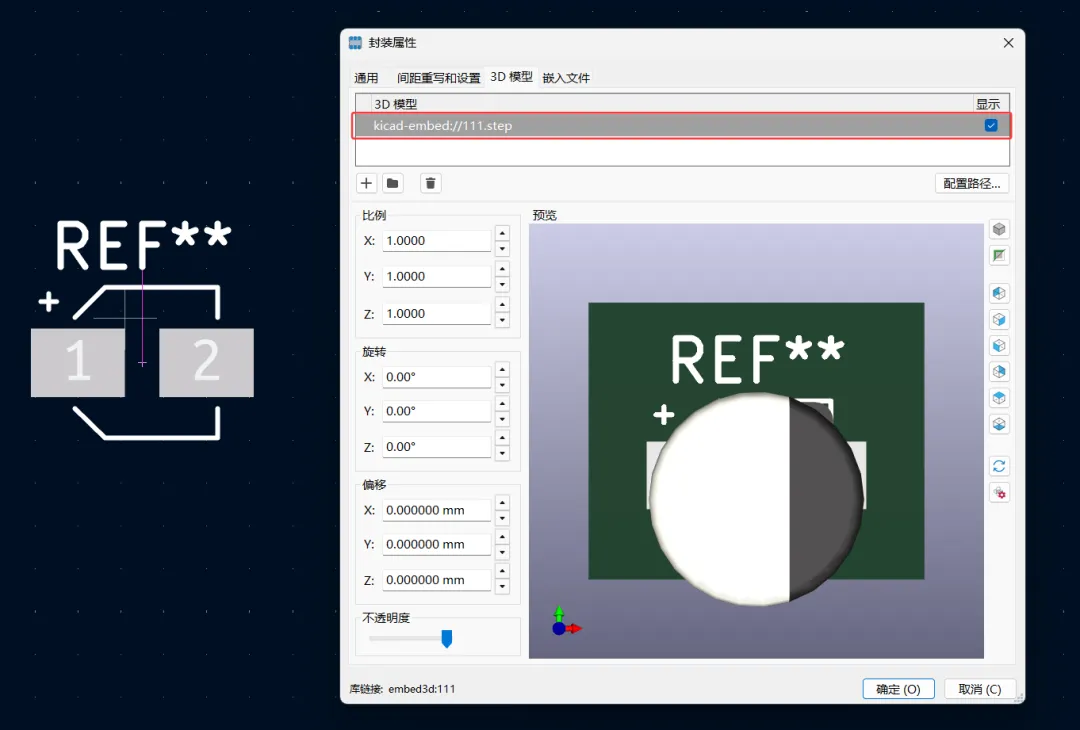
Figure 12 | Reference the PCB-embedded model in the footprint's 3D model path
With this approach, the model is stored in the PCB file instead of the footprint file. When you move or share the PCB, the 3D model remains attached, and there is no external re-linking required.
De-duplication When Placing Footprints
KiCad performs de-duplication of embedded files when a footprint is placed multiple times on a board. If a file is embedded in a footprint and you place several instances of that footprint, KiCad stores a single copy of the embedded file in the PCB and all footprint instances reference the same embedded asset. This avoids wasting space and keeps the project size manageable even when designs include many repeated components.
Practical Guidance and Best Practices
While embedding simplifies portability, it also introduces design choices. The following recommendations help you balance portability, file size, and library maintainability:
- Embed in the footprint when sharing or distributing a standalone library. A self-contained .kicad_mod can be used directly without configuring 3D search paths, which helps when publishing or handing off libraries to others.
- Embed in the PCB when the model is specific to a given board assembly or when multiple footprints should reference the same model managed at the board level.
- Be mindful of model complexity. Large or highly detailed STEP models can significantly increase file size even with compression. Consider simplifying models where appropriate for PCB visualization.
- Understand the kicad-embed:// reference. This scheme points to the compressed model stored inside the footprint or PCB. It should be used in place of filesystem paths in the 3D Models tab when you intend to rely on embedded assets.
- Plan for version control. Self-contained files are easier to move but can produce larger diffs when the embedded model changes. In teams, agree on where to embed versus link to keep repo size and change history manageable.
- Avoid duplicate embedding. If a project uses the same model across many footprints, prefer a single PCB-embedded file referenced by all footprints to reduce storage and to streamline updates.
- Know the trade-off compared to path-based association. Environment-variable-based relative paths still work and keep footprint files small. Use them when teams already share a centralized 3D library and project portability is less of a concern.
Conclusion
Embedded files in KiCad 9 substantially improve the portability of footprints and PCB designs by making models and other assets self-contained. Embedding STEP 3D models either in footprints or in the PCB eliminates fragile external references and reduces time spent fixing broken paths when moving projects or libraries between systems.
In addition to 3D models, KiCad 9 can embed title blocks, fonts, PDFs, and various other resources, which enables consistent appearance and behavior across different machines without manual setup. A subsequent article will cover embedding title blocks and fonts so your schematics maintain their intended formatting regardless of where they are opened.
As with any design decision, weigh the portability benefits against the increased file size and adopt a strategy that fits your team's library management, project sharing, and version-control practices.