Preparing manufacturing files manually can add unnecessary steps between a finished KiCad design and a PCB order. Designers typically need to generate Gerber files, drill files, BOMs, and pick-and-place data, package the files correctly, upload them to a manufacturer's website, and enter the board requirements again.
The AIVON KiCad Plugin streamlines this workflow by connecting a completed KiCad PCB design with AIVON's PCB quotation process. Instead of manually preparing and uploading manufacturing files, you can launch the plugin from KiCad, transfer the required design information, confirm your manufacturing requirements, and continue to the quotation process.
This tutorial explains how to install the AIVON KiCad Plugin, prepare a PCB design, upload manufacturing data, and request a PCB quote.
How to Install AIVON KiCad Plugin Step by Step

KiCad's Plugin and Content Manager is the standard, supported method for installing third-party plugins. The process is the same across recent KiCad versions and keeps plugins isolated from the core application. The plugin is intended for designs that are ready for manufacturing. Always complete your PCB layout and review the design before requesting a quotation.
Before You Start
Make sure you have the following ready:
- KiCad installed on your computer
- A supported KiCad version
- An active internet connection
- A completed PCB project ready for manufacturing
- A valid board outline
- DRC errors resolved before uploading the design
For PCBA projects, make sure your component placement and assembly data are also complete before submitting the design.
Step 1: Open KiCad Plugin Manager
Launch the main KiCad project manager window.
From the top menu choose: Tools → Plugin and Content Manager, or click the Plugin and Content Manager button near the bottom of the window. An internet connection is required so the manager can reach the repository list.
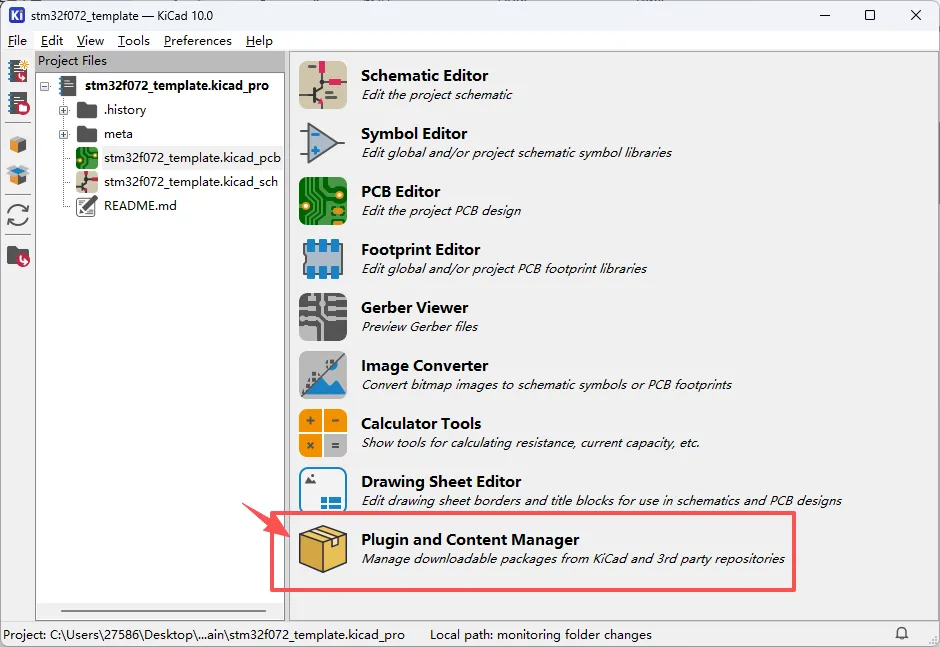
If the Plugin and Content Manager is not available in your KiCad installation, verify that you are using a supported KiCad version.
Step 2: Search and Install AIVON Plugin
In the PCM dialog, switch to the Fabrication Plugins tab. Type "AIVON" in the search/filter field. Select the AIVON plugin entry, click Install, then switch to the Pending tab and click Apply Pending Changes. KiCad downloads and installs the package.
-compress.webp)
If the plugin is distributed via a private or manufacturer repository, add the repository URL first via the Manage button before searching. After installation, close and reopen the PCB Editor so the new toolbar icon appears.
Common Installation Issues:
- Installing but forgetting to apply pending changes.
- Looking for the icon in the Schematic Editor instead of the PCB Editor.
- Running an outdated KiCad version that cannot load the plugin's Python or IPC requirements.
Step 3: Activate the Plugin
Open any PCB project and switch to the PCB Editor. The AIVON icon should appear on the top toolbar or under Tools → External Plugins.
If it is missing, use Tools → External Plugins → Refresh Plugins. On some platforms you may also need to enable the KiCad API or plugin system under Preferences → Plugins.
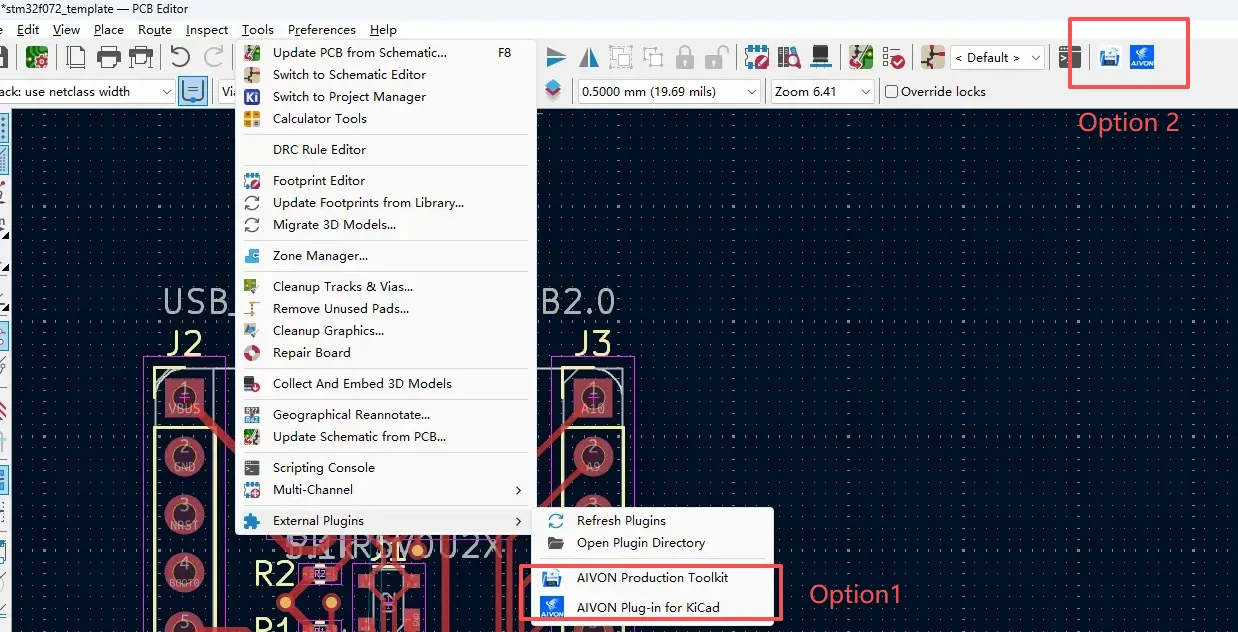
Step 4: Click the AIVON Plugin
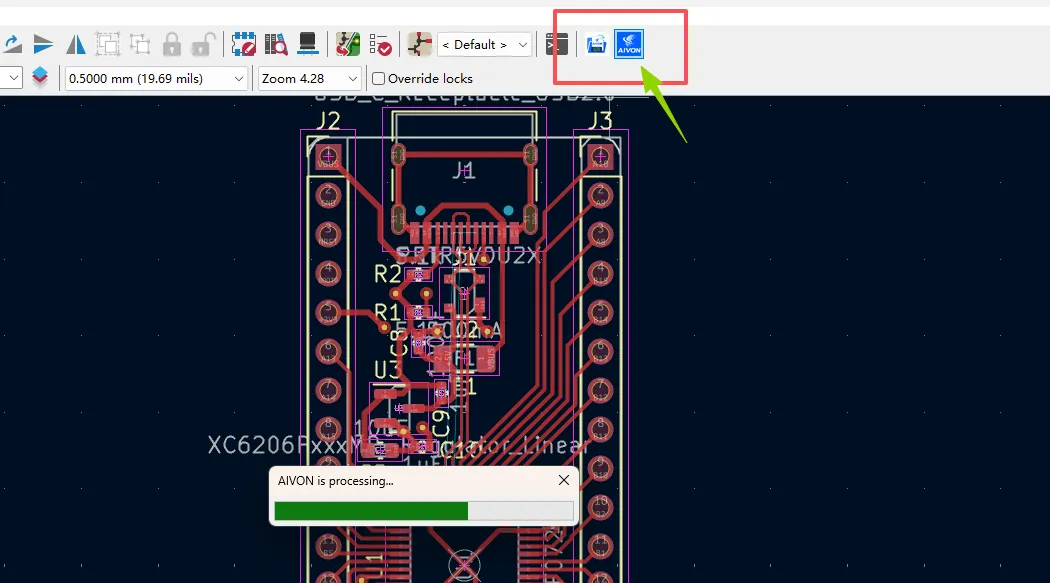
Click the plugin icon for the first time. You do not need to manually generate Gerber files, drill files, or package the manufacturing files before launching the plugin. It automatically reads the relevant design parameters from the current KiCad PCB project and opens the AIVON PCB quotation page with the corresponding parameters.
How to Use AIVON Plugin to Get PCB Quotes
The plugin is intended to be used only after the design is ready for fabrication. Treat the sequence as the final stage of the standard engineering flow:
KiCad Design → Design Rule Check →Click AIVON Plugin → Automatically Open AIVON Quote Page → Quotation → DFM Review → PCB Manufacturing / Assembly.
1. Open PCB Project
Open the project whose board you intend to order. Run a full DRC and resolve all errors and warnings that affect manufacturability. Zone fills should be complete and the board outline clean. The plugin will export whatever is currently in the PCB Editor; incomplete or violated designs simply produce unusable files.

2. Click and Launch Plugin
In the PCB Editor click the AIVON toolbar icon or select it from Tools → External Plugins. The plugin starts the manufacturing-data preparation and quotation workflow.
3. Upload Design Information
The plugin automatically extracts board dimensions, layer count, and other physical parameters from the design. It then generates the manufacturing package in formats accepted by AIVON and uploads them. You normally do not need to open the Plot or Drill dialogs yourself.
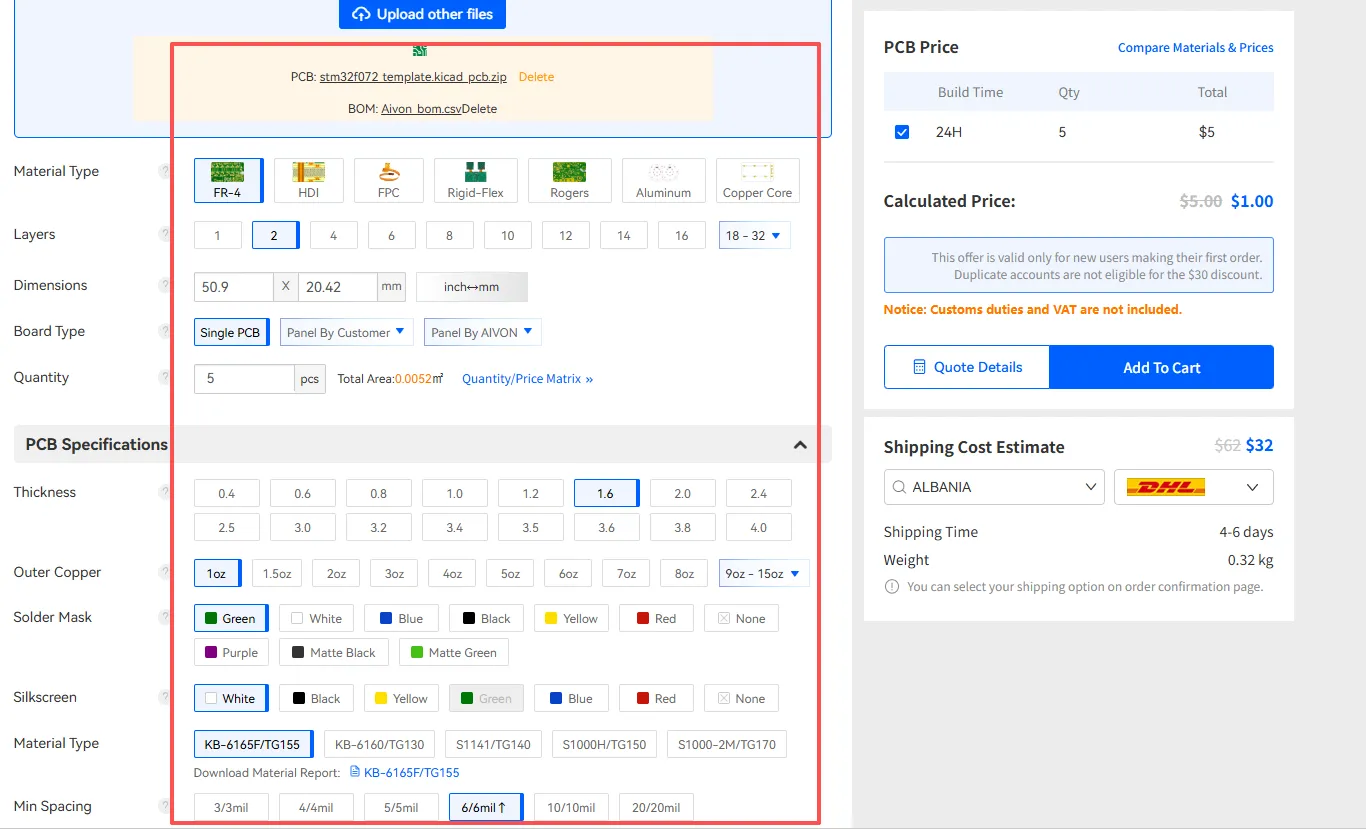
For PCBA orders, additional assembly information such as BOM and pick-and-place data may also be required.
4. Configure Manufacturing Requirements
After the design information is transferred, review the manufacturing parameters shown by the AIVON quotation interface.
Depending on your PCB requirements, confirm or select options such as:
- Quantity
- PCB material
- Layer count
- Board thickness
- Copper weight
- Solder mask color
- Silkscreen color
- Surface finish
- Impedance requirements
- HDI or other special requirements
Make sure the selected manufacturing requirements match your engineering requirements before generating the quotation.
For PCBA Orders
If you are ordering PCB assembly, review the assembly-related information as well.
This may include:
- BOM
- Pick-and-place data
- Component information
- Assembly quantity
- Assembly requirements
Make sure the assembly data corresponds to the latest version of your PCB design.
5. Generate Quotation
After confirming the manufacturing parameters, click the quote or "Add to Cart" action. AIVON returns pricing based on the uploaded files and the options you selected.
Review the quotation, then proceed to order if the numbers and lead time are acceptable. Because the files were generated by the plugin, the chance of missing layers or incorrect drill formats is greatly reduced.
Why Use the AIVON KiCad Plugin?
Manual export remains fully supported, but a dedicated plugin removes several error-prone steps that professional engineers encounter repeatedly.
Reduce Manual File Preparation:
A traditional workflow may require designers to manually configure Gerber generation, generate drill files, prepare additional manufacturing data, compress the files, upload the archive, and enter board specifications again.
The AIVON plugin reduces these manual steps by connecting the KiCad design directly with the AIVON quotation workflow.
Reduce Manufacturing File Errors:
Common failures include omitting the board outline, using the wrong drill units, forgetting the solder-paste layer for stencil, or submitting an incomplete BOM. The plugin packages a consistent, complete set that matches AIVON's acceptance criteria, lowering the probability of an engineering query or hold.
Faster quotation process:
Instead of preparing a manufacturing archive separately and uploading it through a quotation page, designers can start the quotation process directly from their KiCad workflow.
This makes it easier to compare manufacturing options and adjust cost-related parameters while working with the PCB design.
From a manufacturing perspective, the plugin also encourages earlier DFM awareness. Designers see real pricing and capability feedback while the board is still open, rather than discovering issues only after a formal quote request.
FAQ
Q1: Is AIVON KiCad Plugin free?
A1: The plugin itself is free to install and use through the KiCad Plugin and Content Manager. You pay only for the PCB fabrication or assembly services ordered through AIVON.
Q2: Which KiCad versions are supported?
A2: The plugin targets current stable KiCad releases that include the modern Plugin and Content Manager and the required Python/IPC interfaces (typically KiCad 6 and later; confirm the exact list in the plugin's PCM description). Always use a recent KiCad version for best compatibility and security updates.
Q3: Can I modify my PCB after quotation?
A3: Yes. After receiving a quotation you can revise the design in KiCad, re-run DRC, and launch the plugin again. The new upload creates a fresh quotation or revision. Existing orders that have already entered production cannot be changed without contacting AIVON support.
Q4: Does the plugin replace manual Gerber generation completely?
A4: For ordering from AIVON it can. Many engineers still keep a manual export workflow as a backup or for sending files to other fabricators. The plugin is an acceleration layer, not a replacement for understanding Gerber, drill, and assembly data formats.
Q5: What happens if DRC is not clean before launching the plugin?
A5: The plugin will still export the current state of the board. Manufacturing will then either reject the files or raise DFM issues. Always clear DRC and preferably perform a visual manufacturing review before requesting a quotation.